How to track your spending without linking your bank account
You can see your whole spending picture without giving any app your bank login or a live feed into your accounts. We walk through the CSV route: export your transactions from your own bank, drop the file into Kleev, and keep your credentials to yourself.
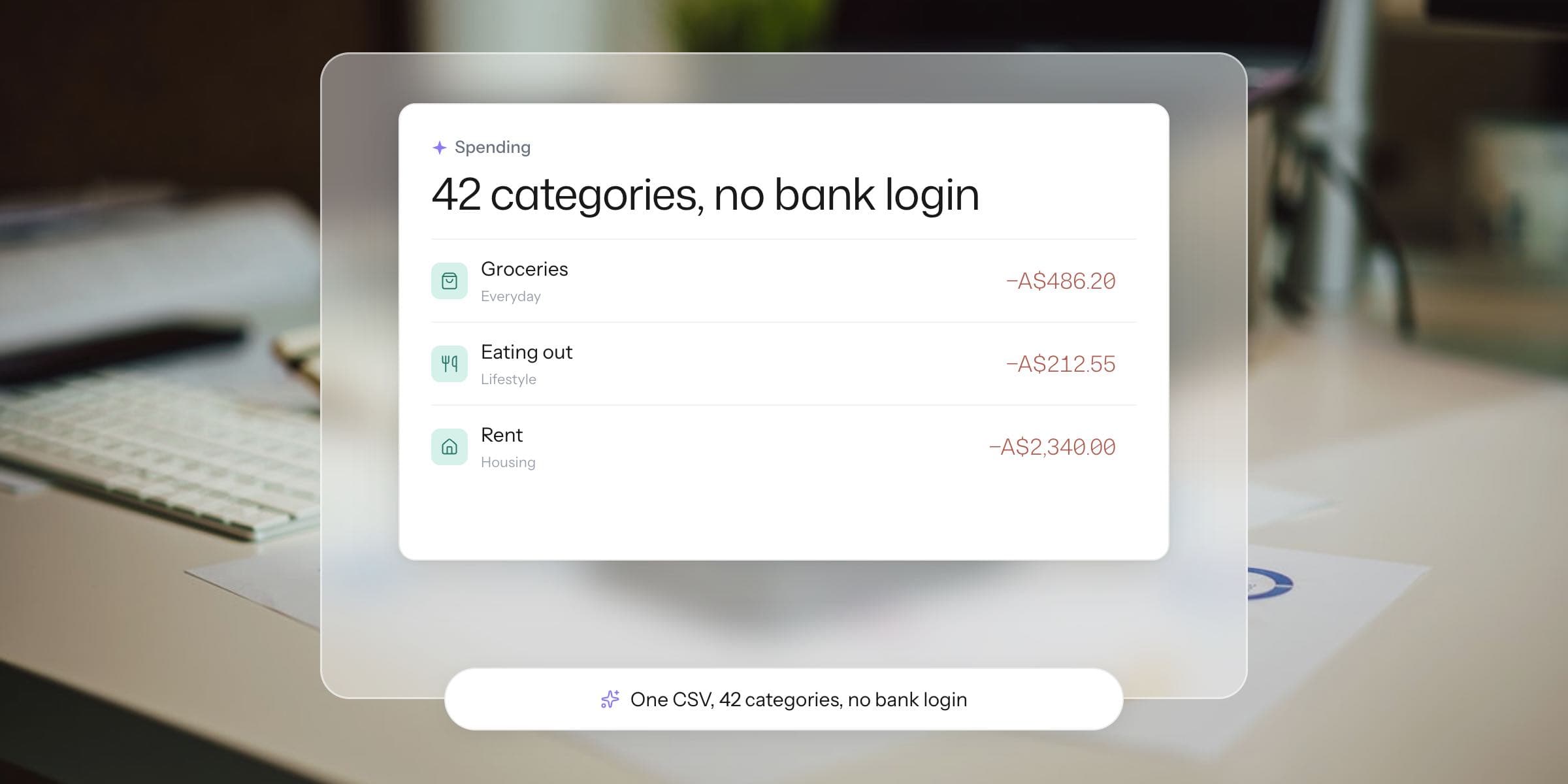
The short version
- You don't need a bank feed to track your spending. A CSV export from your own bank carries the same transactions.
- Download the file from web banking and drop it into Kleev. It's parsed in your browser, the raw file is never uploaded, and you never share a login.
- The cost is a ten-minute job each month instead of an automatic refresh. For a lot of people that trade is easy.
Most budgeting apps start by asking you to connect your bank. Plenty of people close the tab right there.
You might not want an ongoing feed running from your transaction account into a startup's database. Your bank's terms might make you cautious, or you might simply not hand out banking access to anyone who asks nicely.
That hesitation is reasonable. It also shouldn't stop you knowing where your money goes.
Your bank already holds the data you need, and it will give it to you as a plain file. Kleev is built around that file, so tracking your spending without a linked account is the normal way to use it.
Can I budget without giving an app my bank login?
Yes. The mechanism is the CSV export, and it is very simple: every transaction your bank shows you on screen can be downloaded as a comma-separated file, which is a spreadsheet-friendly list of dates, descriptions and amounts.
That file holds everything a categorising tool needs. There's no password, no authorised connection, and no third party sitting between you and your bank.
You download the file yourself, from your own logged-in session. You decide what reads it.

How do I get my transactions out of my bank?
Log into web banking in a browser, open the account you want, and look for an Export or Download control near the transaction list. Choose CSV as the format and the widest date range on offer.
That takes about a minute per account once you know where the button lives. Banks do move the button around, which is why we keep a step-by-step CSV export guide with screenshots, plus dedicated walkthroughs for CommBank, NAB, HSBC, Amex, Revolut and Wise.
Two things to get right before you upload
Use a computer rather than the mobile app. Most banks keep their full export options on the desktop site.
Then don't open the file in Excel before you upload it, because Excel quietly reinterprets Australian day-first dates. Download it, have a squiz at the filename if you like, and hand it straight to the tool that will read it.
Is CSV upload safer than a bank feed?
A CSV removes the standing connection, which is the part of a bank feed that carries the ongoing risk. With a feed, something outside your bank holds either a credential or an authorisation, and data flows on a schedule you don't watch.
With a CSV, data moves exactly once, when you choose. After the download, nothing can pull anything further from your account, and no credential can leak because no credential ever left your possession.
What about regulated bank feeds?
We'll be fair to the other side. Australia's regulated bank feeds, built on the Consumer Data Right, are far better than the old share-your-password model, and they never expose your login either. We've written an honest explainer on whether it's safe to link your bank account to a budgeting app if you want the full picture.
The CSV route makes the whole question moot. There is nothing to link, so there is nothing to worry about, revoke, or audit later.

What happens to the file once it's in Kleev?
Kleev parses the CSV in your browser, on your device, and never uploads the raw file. It recognises which bank the file came from by its column shape, works out whether debits are written as negatives or positives, and normalises everything into a single list of transactions.
Upload files from several banks and cards together and Kleev combines them into a single view. It also spots transfers between your own accounts, so they don't get double-counted as spending.
What does Kleev send to its AI?
We'd rather be precise than flattering about the boundaries. If Kleev doesn't recognise a file's layout, it sends the filename, the column headers and the first five rows to its AI so it can work out the format.
Kleev's AI features also send transaction details, including descriptions, dates, amounts and account names, to Anthropic's Claude API for categorisation. Kleev never asks for a bank login, and it has no feed, no aggregator, and no way to reach into your accounts.
What's the catch?
Honesty demands one: the data doesn't refresh itself. A linked feed updates while you sleep, and a CSV updates when you export a new one.
In practice this becomes a short monthly routine. Ten minutes with a coffee at the end of the month, exporting each account and dropping the files in together.
Kleev de-duplicates anything it has already seen, so you can overlap date ranges freely rather than cutting them precisely. This route won't give you a spending picture that's live to the minute, but it will give you one that's accurate, complete and entirely on your terms.
What do you get once the transactions are in?
Kleev categorises the transactions and surfaces your recurring charges. It builds the spending view that makes the whole exercise worthwhile: where the money actually went, month by month, across every account at once. Start with one CSV in Kleev →
Common questions
Can I budget without giving apps my bank login?
Yes. Every major Australian bank lets you export your transactions as a CSV file from web banking, and a tool like Kleev reads that file directly. You get the same categorised spending picture a bank feed would give you. You share no password and you authorise no ongoing connection to your accounts.
Is CSV upload safer than a bank feed?
It removes the two things a feed requires: a credential or authorisation held by someone else, and a standing connection to your account. A CSV moves data only when you choose to export it, and nothing can be drawn from your bank afterwards. The trade-off is convenience, because you repeat the export when you want fresh data.
How do I get my transactions out of my bank?
Log into web banking on a computer, open the account, set the widest date range the bank allows, and look for an Export or Download option with a CSV format. The wording differs between banks but the task is always the same shape. Kleev's per-bank guides cover the exact click paths for CommBank, NAB, HSBC, Amex, Revolut and Wise.
Does Kleev upload my CSV file?
No. Kleev parses the file in your browser and never uploads the raw CSV. If Kleev doesn't recognise a file's layout, it sends the filename, the column headers and the first five rows to its AI to work out the format. Kleev's AI features also send transaction details, such as descriptions, dates, amounts and account names, to Anthropic's Claude API for categorisation.
How often do I need to upload a new CSV?
Once a month works for most people. Set a recurring reminder, export the last month from each account, and drop the files in together. Kleev skips anything it has already seen, so overlapping date ranges don't create duplicates.