How to export your NAB transactions as a CSV
NAB's internet banking exports your transaction history as a CSV, including a seven-year option most people never notice. We walk through the click path, the date-range filters, the app's limits, and how the file lands in Kleev.

The short version
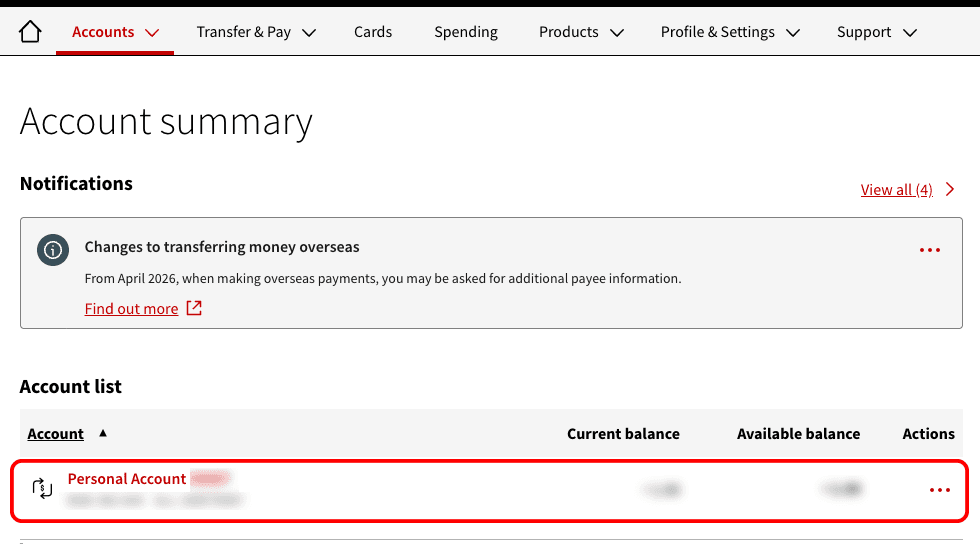
- Log into NAB internet banking in a browser and open the account from the Account summary.
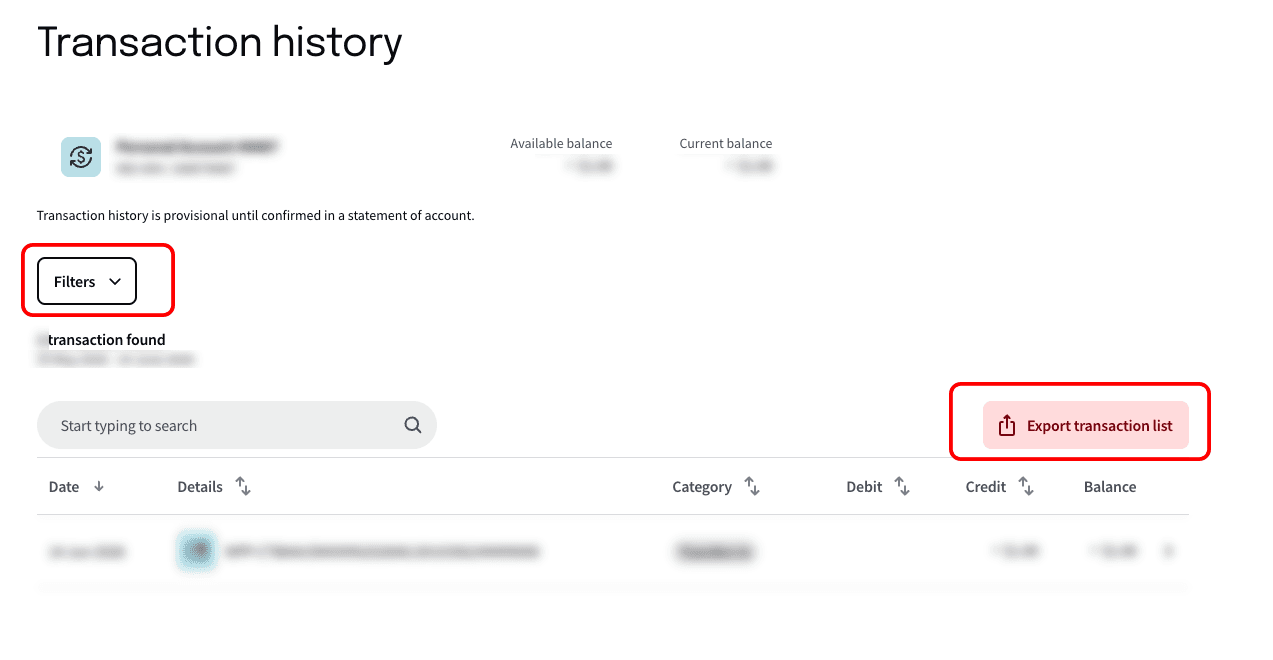
- On Transaction history, set your dates with Filters, then click Export transaction list at top right.
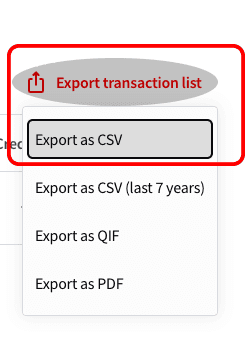
- Choose Export as CSV, or the seven-year CSV option if you want the long history, then drop the file into Kleev.
This is the NAB chapter of our full CSV export guide, with the extra detail people ask for: where the long-history option hides, what the app can and can't do, and why you shouldn't open the file in Excel first.
How do I export my NAB transactions as a CSV?
NAB exports transactions as a CSV from internet banking, using the Export transaction list button on each account's Transaction history page. Start by opening the account you want from the Account summary.
On the Transaction history page, open Filters to set your date range, then click Export transaction list at the top right of the list.
How far back can NAB export?
NAB's export menu offers a long-history option covering up to seven years, alongside the plain CSV of whatever range you currently have on screen. It's easy to miss, because both entries sit in the same short dropdown and look almost identical. If you want everything in one file rather than a rolling few months, pick the seven-year CSV.
Can I export from the NAB app?
The NAB app handles payments and balances rather than exports, so use NAB internet banking in a browser for the CSV. If you only have a phone, open internet banking in the phone's browser and request the desktop site; the Export transaction list button appears in the same place.
Which file format should I choose?
Choose CSV. If your export menu also lists formats aimed at accounting packages, they carry the same transactions in a shape those programs expect, but CSV is the plain-text version that everything reads, Kleev included. There's no data hiding in the other formats that the CSV leaves out.
Why do my dates look wrong after opening the file?
Because Excel guessed. Australian bank exports write dates day-first (07/03 is 7 March), and Excel frequently reads them month-first, turning 7 March into 3 July without telling you. If you then save, the damage is baked in. The simplest defence is to leave the CSV alone: don't open it, don't re-save it, just upload it to Kleev exactly as NAB produced it.
What if the period I want is only a PDF?
Older periods sometimes only exist as PDF statements. You can convert them yourself by handing the PDFs to an AI assistant with a prompt asking for date, description, amount and balance columns, then uploading the CSV it returns. The exact prompt is in the parent CSV export guide.
What happens once the CSV is in Kleev?
Drop the file in and Kleev identifies the NAB format from its columns, normalises every row, and starts categorising so your spending view fills in. NAB account exports and NAB card exports have different column sets, and Kleev handles both, so you can upload a card and an everyday account together and read them as one combined history. The CSV is parsed in your browser and never uploaded; Kleev's AI features do send transaction details to Anthropic's Claude API for categorisation. Either way, no NAB login is ever involved.
Common questions
Does Kleev need my NAB internet banking login?
No. Kleev never asks for your NAB ID, password or any banking credential, and it doesn't connect through a data aggregator. You export the CSV from NAB yourself and drop the file into Kleev, where it's parsed on your device.
How do I get more than a few months of NAB history?
NAB's export menu includes a long-history CSV option covering up to seven years, separate from the plain CSV export of whatever range you have on screen. Choosing that option is the difference between a few months and most of your banking history in one file.
Can I export NAB transactions from the mobile app?
The NAB app is built for day-to-day banking rather than data export, so the reliable route is NAB internet banking in a browser. On a phone, open internet banking in the browser and request the desktop site.
Do NAB credit cards export differently from transaction accounts?
The steps are the same, but the file isn't: a NAB credit card export has no running balance column and labels its columns differently from a transaction account. Both are normal NAB formats and Kleev reads each one, so you can export a card and an everyday account and upload them together.
My NAB export opened in Excel and the dates look wrong. What happened?
Excel often reinterprets Australian day-first dates as American month-first ones when it opens a CSV, which silently shuffles your data. The fix is not to open the CSV in Excel at all before uploading it: give Kleev the file exactly as NAB produced it.