How to export your Wise transactions as a CSV
Wise buries its CSV export under Statements and reports, one currency balance at a time. We walk through the path, explain the file-type list (including the formats you can safely ignore), and cover business accounts and older periods.

The short version
- Open your profile at the top right of the Wise web app, then Statements and reports, then Statements.
- Set the period and the currency balance, then choose CSV under Accounting & data.
- Repeat for each currency you hold and drop the files into Kleev together.
This is the Wise chapter of our full CSV export guide, with more detail on the file-type list and on the multi-currency question that trips people up.
How do I export my Wise transactions as a CSV?
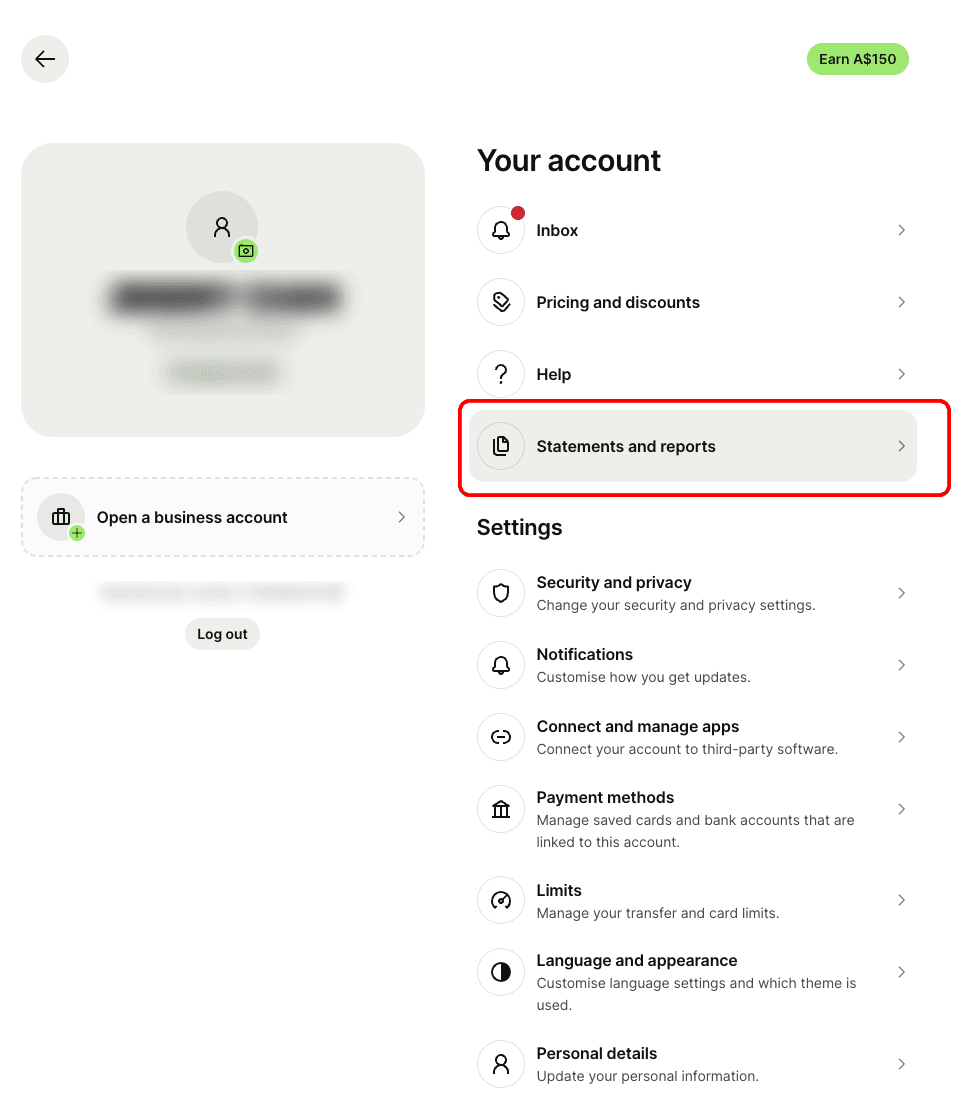
Wise exports transactions as a CSV from Statements and reports, reached through your profile menu rather than from the account view itself. Start by clicking your profile at the top right.

Open Statements and reports.
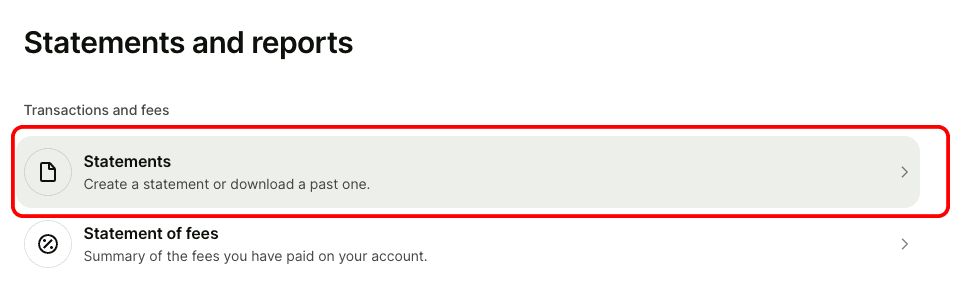
Then click Statements, the option for creating a statement or downloading a past one.
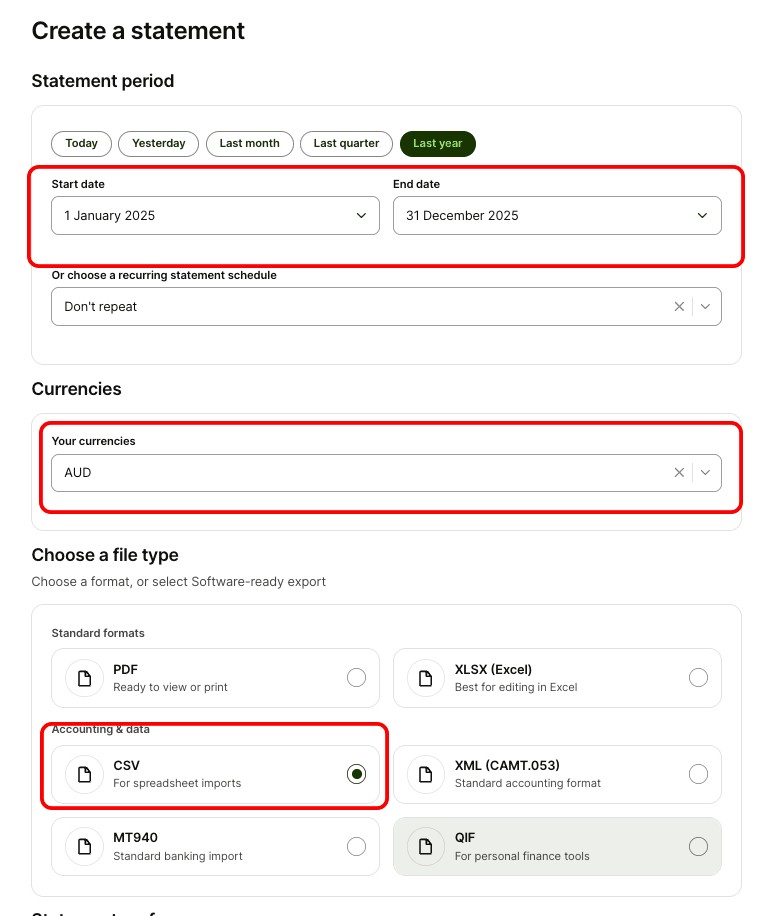
Set the statement period and the currency balance, then under Choose a file type, pick CSV from the Accounting & data group and generate.
Do I need a separate statement for each currency?
Yes. Wise generates one statement per currency balance, so if you hold AUD, USD and EUR you take three exports. That's the right shape anyway: totalling three currencies into one column would produce a number that means nothing. Upload all three files to Kleev together and each balance arrives as its own account in the same combined view, with conversions between your own balances read as transfers rather than spending.
Which file type should I choose?
Choose CSV. Wise groups its formats by who's meant to read them: PDF is the readable statement you'd send a landlord or a visa office, and the Accounting & data group holds the machine-readable options. Some accounts also see bank-interchange formats designed for accounting systems to consume automatically. Unless your accountant has asked for one of those by name, CSV is the one you want.
Can I export from the Wise app?
Yes. The Wise app carries the same Statements and reports section, so you can generate a CSV from your phone without a laptop. If you're exporting several currencies in one sitting, the web app is less tedious, but the files are identical.
What about Wise Business accounts?
Wise Business exports the same way, through Statements and reports on the business profile. The extra wrinkle is the profile switcher: if you run a personal and a business profile, check which one you're in before you generate, or you'll export the wrong account's history and wonder where your transactions went.
What happens once the CSV is in Kleev?
Drop the files in and Kleev recognises the Wise format from its columns, normalises every row and starts categorising so your spending view fills in. Wise is usually one account among several, so export your main bank too and upload everything together: the point of putting everything in one place is that your spending totals cover all of it. Parsing happens in your browser and the file is never uploaded; Kleev's AI features do send transaction details to Anthropic's Claude API for categorisation. Your Wise login is never asked for.
Common questions
Where is the CSV export in Wise?
Wise puts it under your profile menu, then Statements and reports, then Statements. Choose the balance and period, and pick CSV from the file types grouped under Accounting & data.
Do I need a separate Wise statement for each currency?
Yes. Wise generates a statement per currency balance, so holding AUD, USD and EUR means three exports. Upload the files to Kleev together and each balance becomes its own account in the same combined view.
Which Wise file type should I choose?
Choose CSV. Wise also offers PDF for a readable statement and, on some accounts, bank-interchange formats like MT940 or CAMT that accounting systems consume. CSV is the plain-text version that general tools read, Kleev included.
Can I export a Wise statement from the app?
Yes. The Wise app carries the same Statements and reports section as the web app, so you can generate a CSV from your phone. The web app is easier if you're exporting several currencies in one sitting.
Does Kleev need my Wise login?
No. Kleev never asks for your Wise credentials and doesn't connect through a data aggregator. You generate the statement in Wise yourself and drop the file into Kleev, where it's parsed on your device.