How to export a CSV bank statement (selected banks)
A screenshot-by-screenshot guide to downloading your transactions as a CSV from selected Australian banks: CBA, NAB, HSBC, Amex, Wise and Revolut. And because Kleev reads your CSV right in the browser, you never hand over your bank login.

BANK LOGIN
NEVER ASKED
BANKS READ
ALL
THE SHORT VERSION
- Log into web banking, not the mobile app, since the full export options usually live on desktop.
- Choose CSV (or Excel) and the widest date range the bank lets you pick.
- Drop the file into Kleev, where it's parsed in your browser and never touches your bank login.
All the steps below are for web banking on a laptop. Wise and Revolut can also export a CSV from their mobile apps, which is handy if you don't have a computer to hand.
Kleev never asks for your internet-banking password and never connects through a data aggregator. The way you get your transactions in is a plain CSV export: you download the file from your own bank, then drag it into Kleev, where it's parsed on your device. That single step is why there's no credential to leak and no copy of your statement sitting in a database somewhere.
A note on the steps below: each bank moves its buttons around from time to time, and labels differ between personal and business logins. Treat these as a reliable guide rather than a pixel-perfect click path. If a menu name has changed, look for the nearest equivalent ("Export", "Download", "Statements", "Transactions"). The shape of the task is always the same: open an account, find its transaction list, and export it as CSV over the widest date range available.
CommBank (NetBank)
CommBank's full export lives in NetBank on the web; the mobile app is more limited.
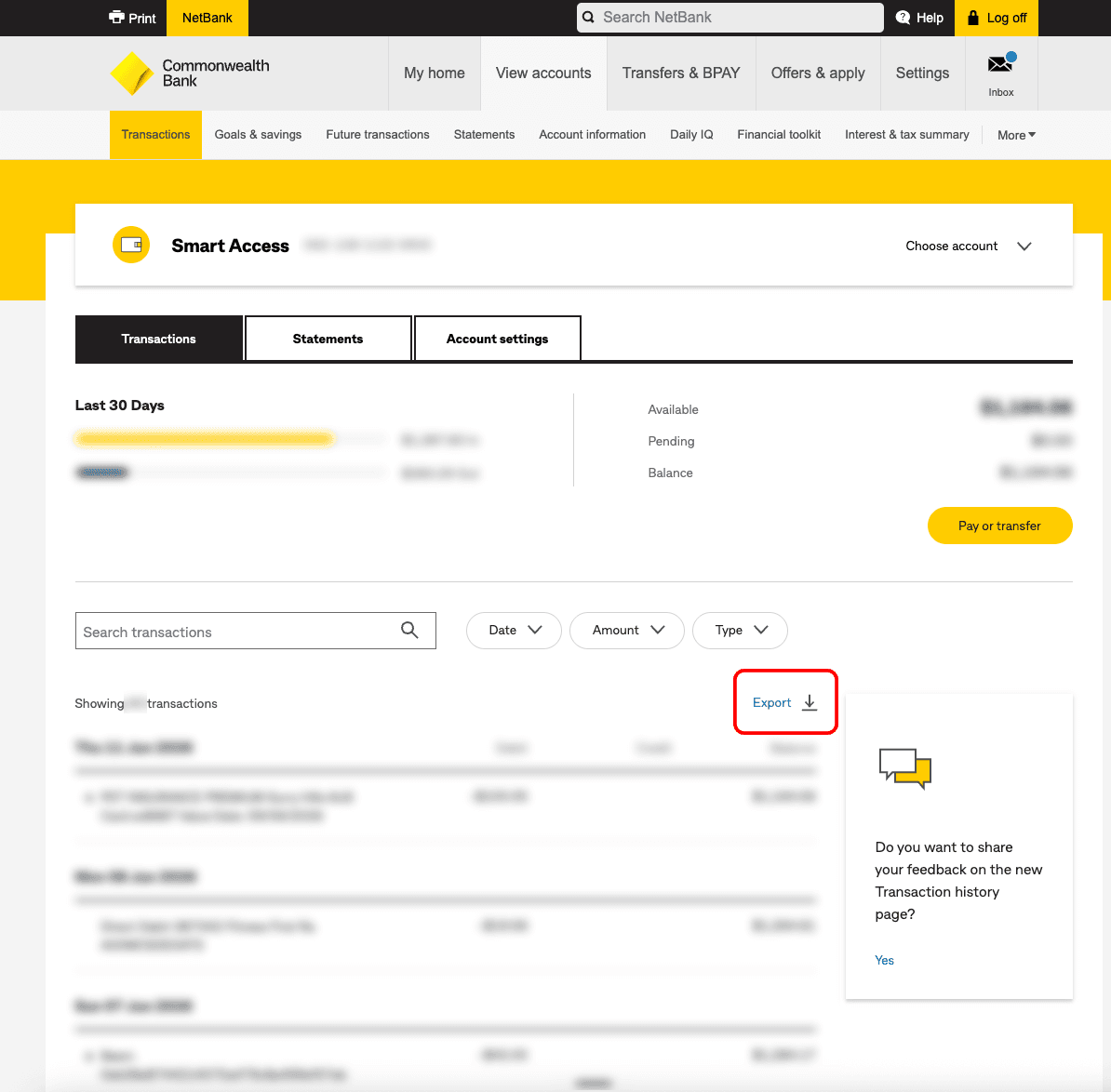
Log into NetBank in a browser, go to View accounts → Transactions, and choose your account. Use the Date / Amount / Type filters to set the range, then click Export (the download icon above the transaction list), choose CSV, and download.
NAB
NAB's CSV export is in internet banking, on the transaction history of each account.
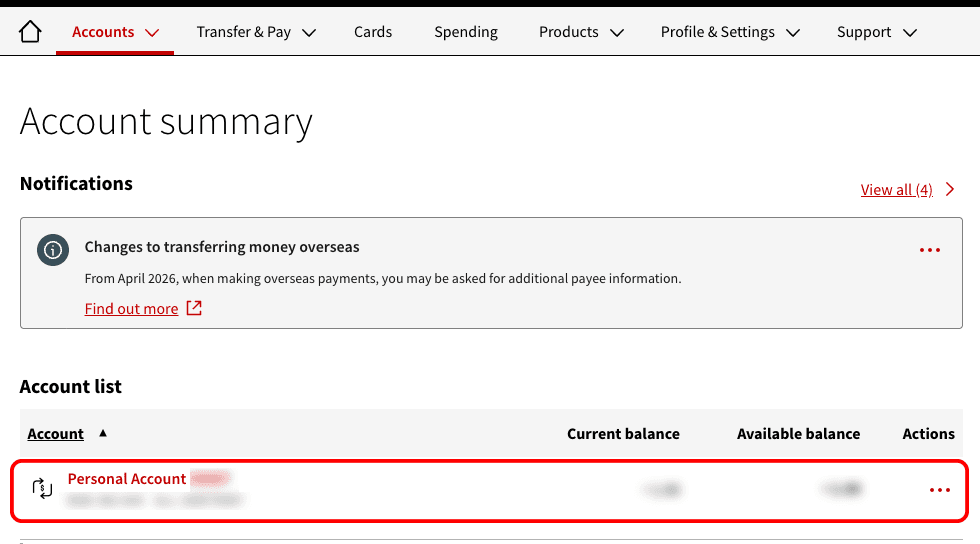
Log into NAB internet banking and open the account you want from the Account list.
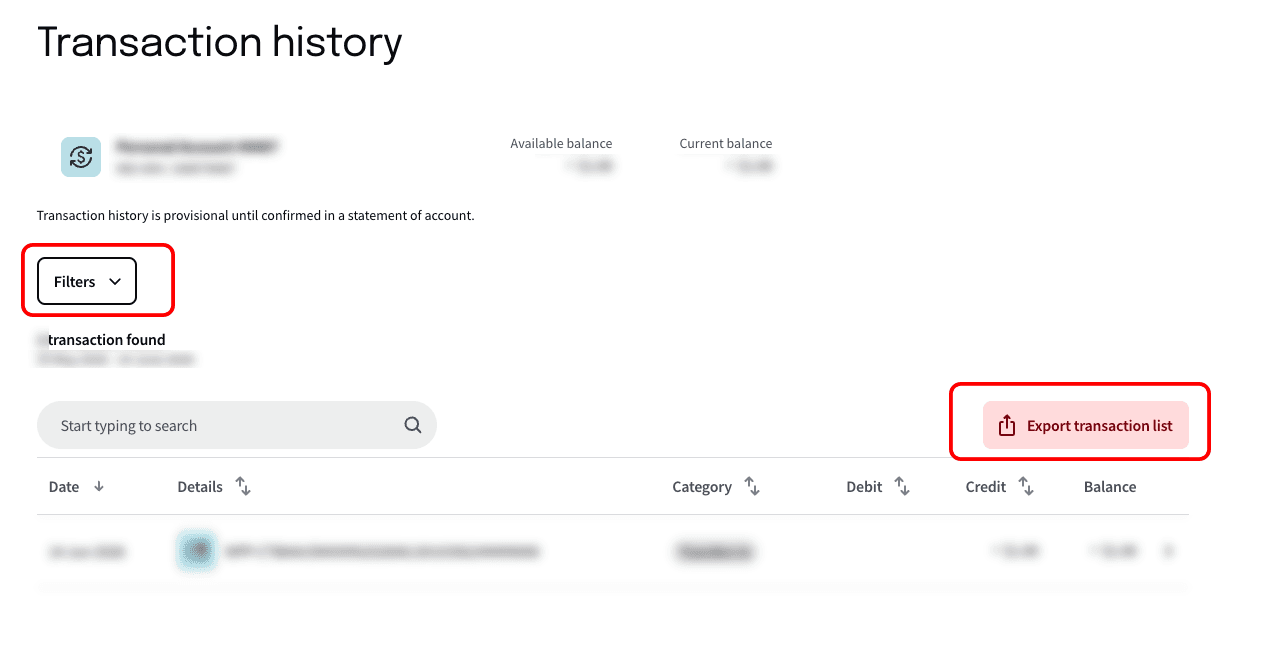
On the Transaction history page, use Filters to set your date range, then click Export transaction list (top right).
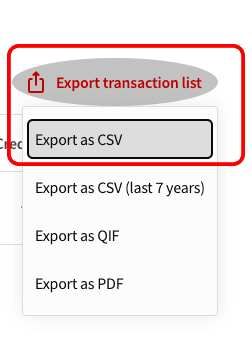
Choose Export as CSV (or Export as CSV (last 7 years) for the full history).
HSBC
HSBC's online export covers recent transactions; older periods come from e-statements instead.
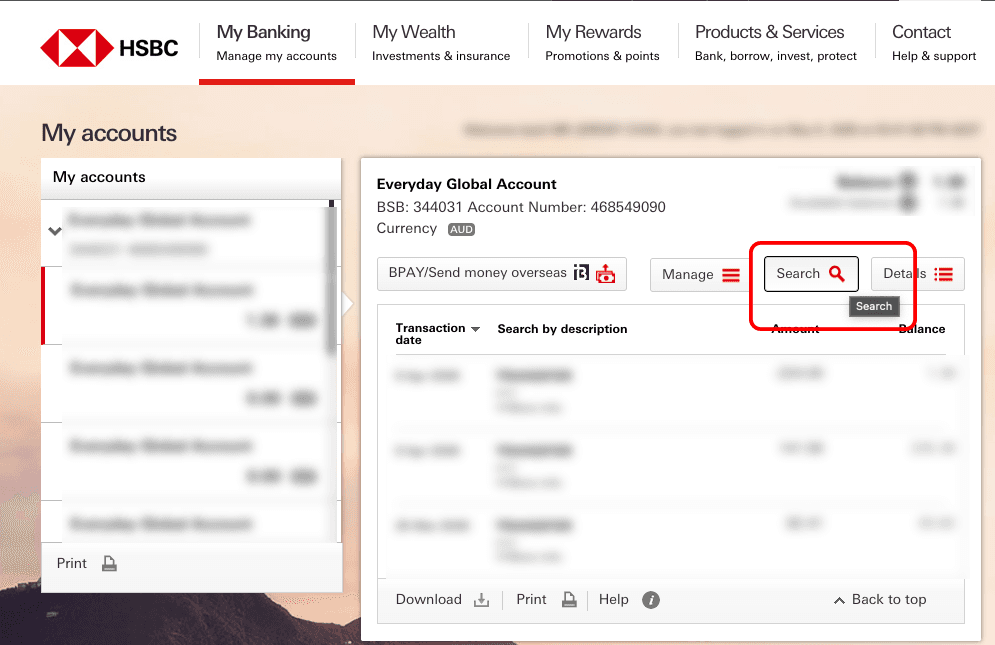
Log into HSBC online banking, open My accounts, select the account and click Search.
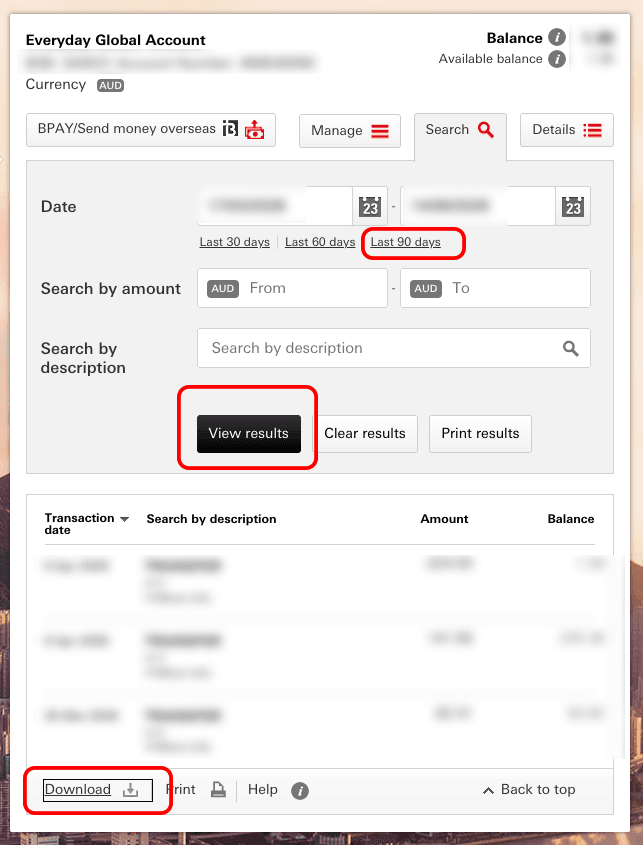
Set the date range (HSBC's online export is limited to about the last 90 days), click View results, then click Download.
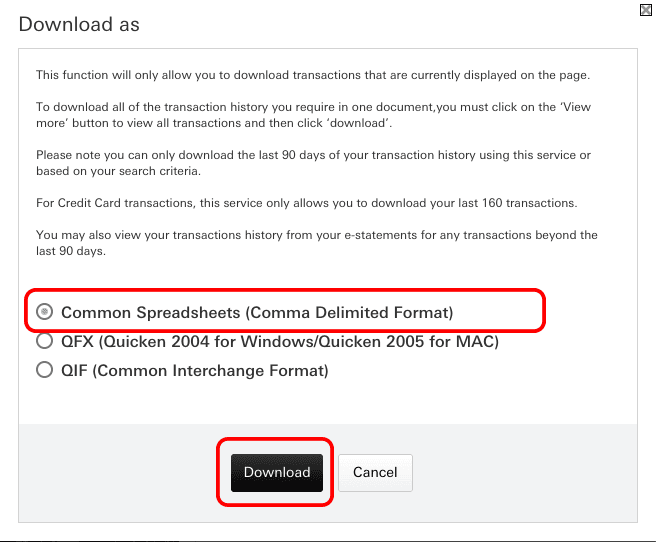
In the Download as dialog, choose Common Spreadsheets (Comma Delimited Format), which is CSV, and click Download.
For periods older than about 90 days, HSBC only gives you e-statements (PDF); the online CSV export reaches back a few months. To get those into Kleev, you can use your own AI (Claude, ChatGPT and the like) to convert these statements into a CSV. Paste the prompt below into your AI along with the PDF e-statements, then drop the CSV it returns into Kleev.
PROMPT: PDF E-STATEMENTS → CSV
- Turn these bank statement PDFs into a CSV with columns: Date (DD/MM/YYYY), Description, Amount (minus for debits), Balance. One transaction per row, nothing else.
 Claude
 ChatGPT
 Gemini
The same trick works for any statements you can only get as PDFs, not just HSBC's: give your AI the PDFs and the prompt, then feed Kleev the resulting CSV.
Amex (American Express)
American Express exports CSV from Statements & Activity, for either a billing period or a custom span.
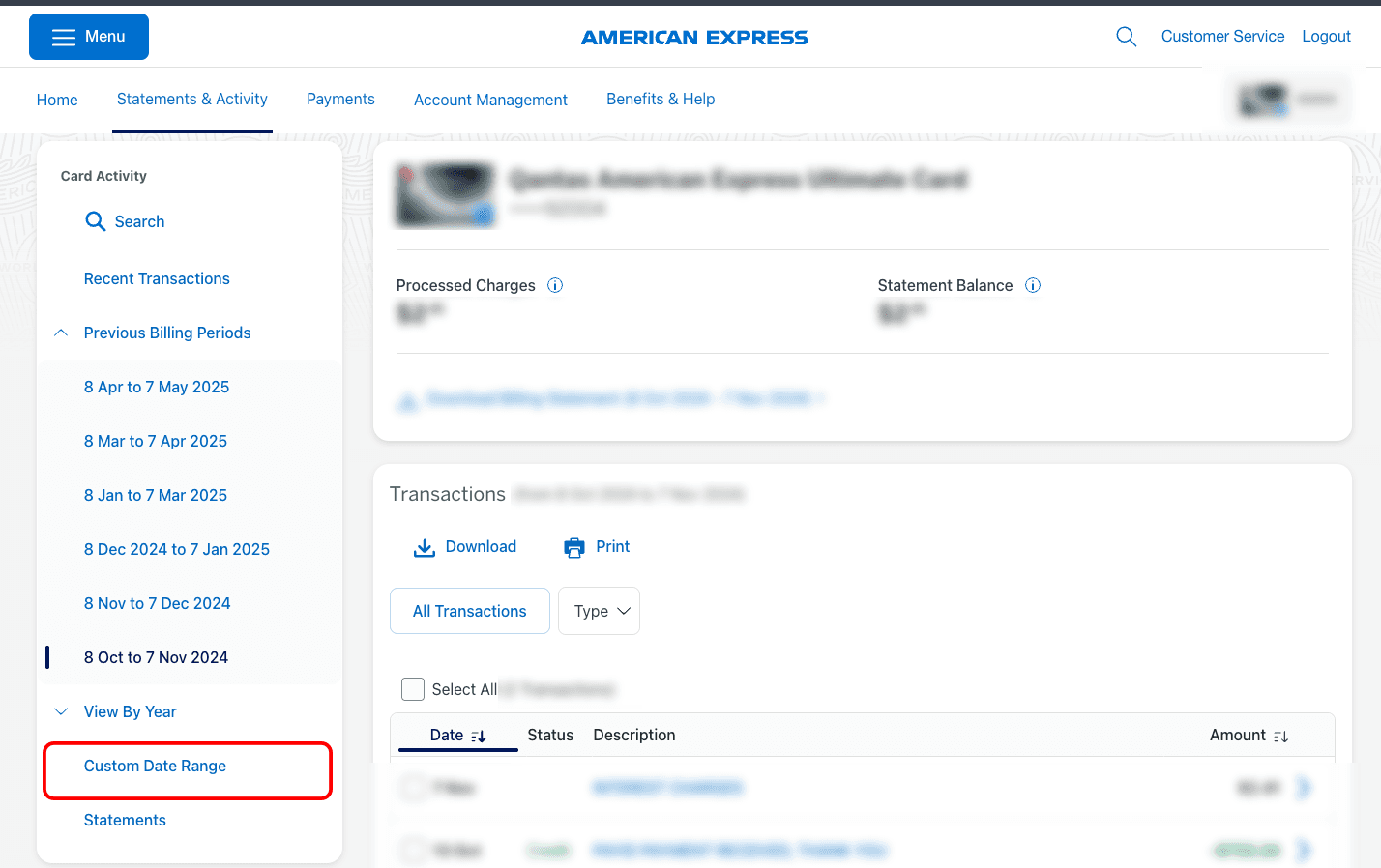
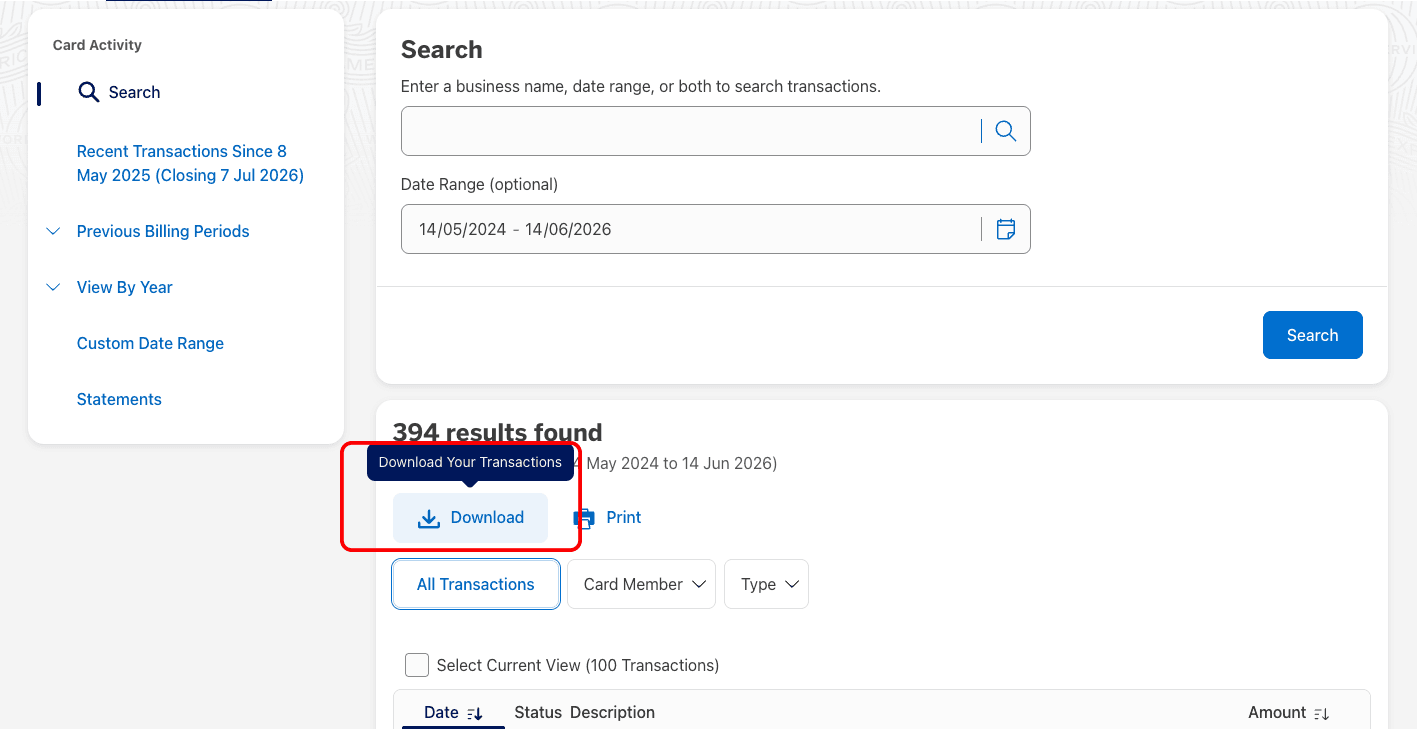
Log into American Express and go to Statements & Activity. Pick a billing period, or use Custom Date Range for a specific span.
Once your transactions are listed, click Download (Download Your Transactions).
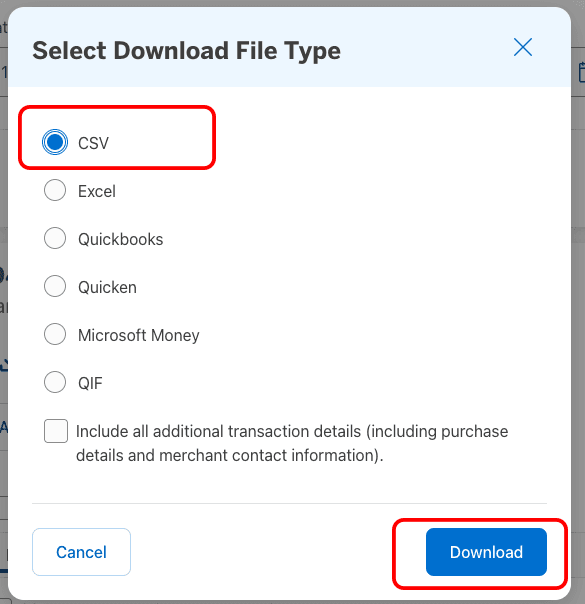
In Select Download File Type, choose CSV and click Download.
Revolut
Revolut's web app exports a CSV directly: its "Excel" option downloads as a CSV file that Kleev reads. Here's the web flow.
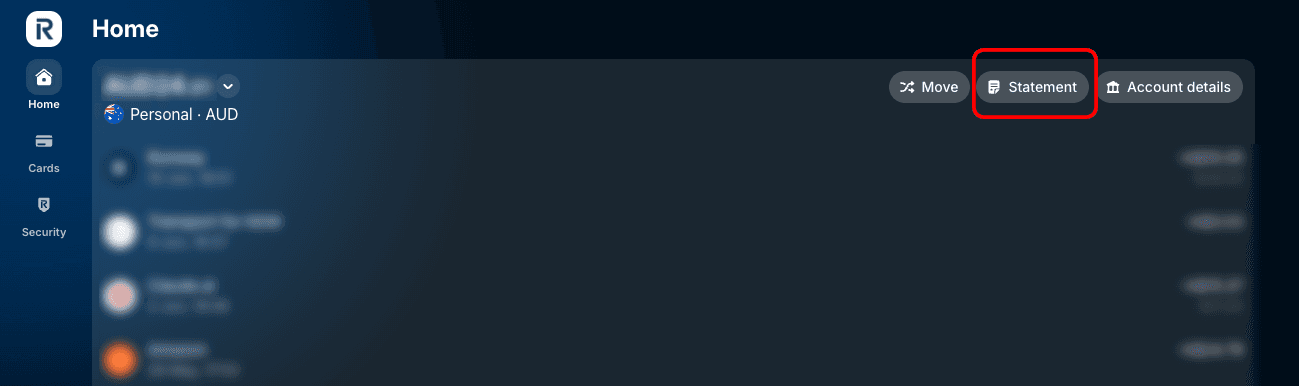
On the Revolut web app Home, open your account and click Statement (top right).
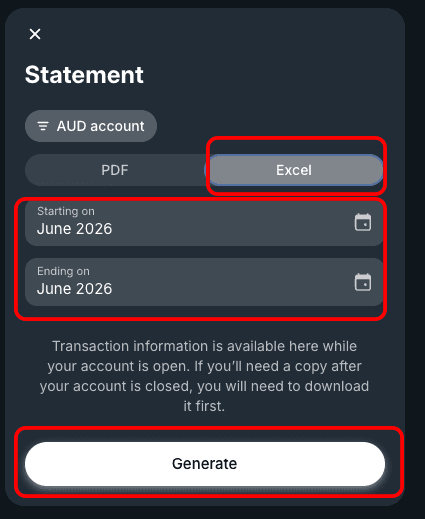
Choose Excel for the format (it downloads as a CSV Kleev can read), pick your date range, then click Generate.
Wise
Wise lets you export a CSV straight from the web (or the app).
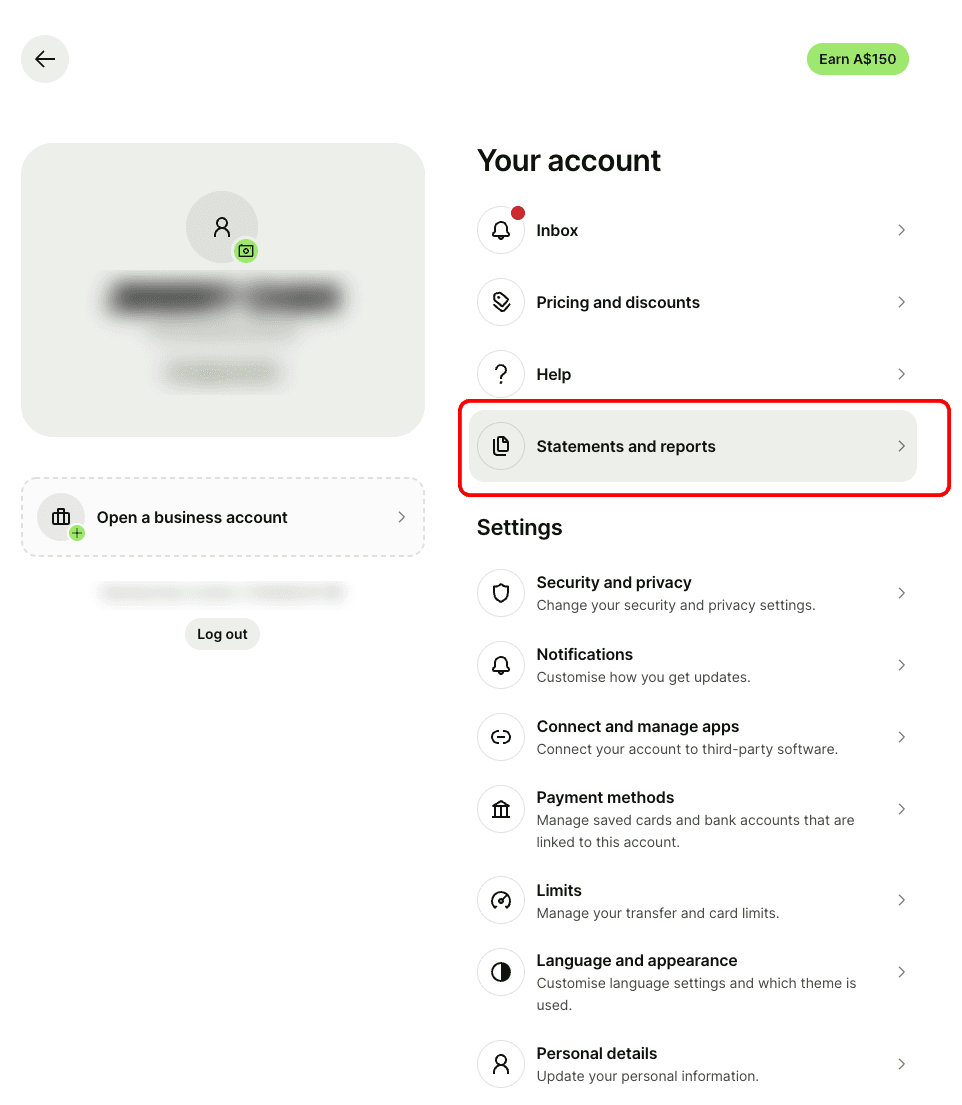
Click your profile / account at the top right.

Open Statements and reports.
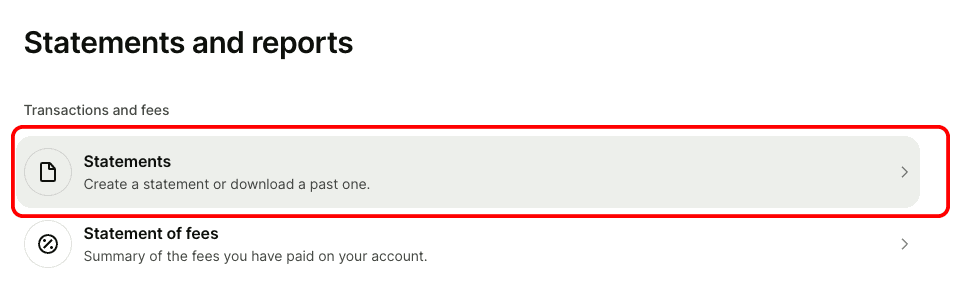
Click Statements (Create a statement or download a past one).
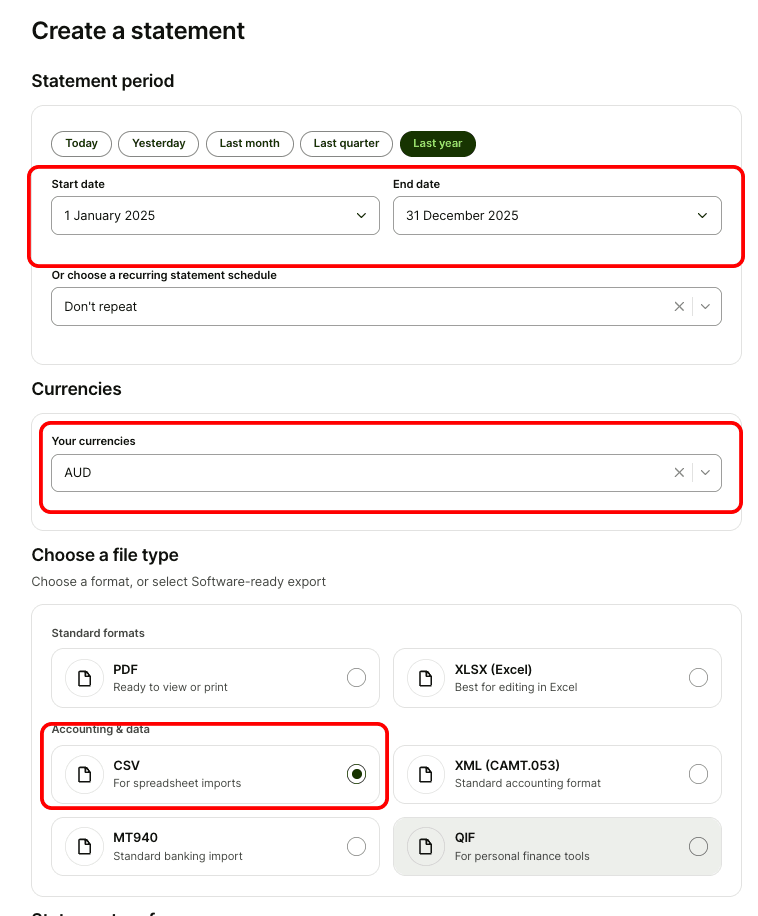
Set the statement period and your currency (e.g. AUD), then under Choose a file type → Accounting & data select CSV and generate.
Then what?
Once you have the CSV, head to the Kleev app and drag the file in. Kleev detects which bank the file came from by its column headers, normalises the transactions, and starts categorising, all without your file ever leaving the browser. If you have accounts at several banks, export from each and drop them in together; Kleev stitches them into one combined transaction list so your spending, property and net-worth views read across every account at once.
MORE BANKS COMING SOON
- We're adding step-by-step CSV guides for more Australian banks, so check back soon.
- If your bank isn't here yet, Kleev can still read most CSV exports automatically.
Common questions
Do I need to give Kleev my bank login to upload transactions?
No. You export the CSV from your own bank and drag the file into Kleev, where it's parsed in your browser. Kleev never asks for your internet-banking password and never connects through a data aggregator, so there's no credential to leak and no copy of your statement sitting in a database somewhere.
Which export format should I choose?
Choose CSV wherever your bank offers it, over the widest date range the bank lets you pick. Excel is fine too where it's the closest option: Revolut's Excel export, for instance, downloads as a CSV that Kleev reads.
Can I export a CSV from my bank's mobile app?
Usually not. Most banks keep their full export options in web banking on a computer, so log in through a browser. Wise and Revolut are the exceptions: both can export a CSV from their mobile apps.
What do I do with statements that only come as PDFs?
Convert them with your own AI. Give Claude, ChatGPT or Gemini the PDF statements along with a prompt asking for Date, Description, Amount and Balance columns, then drop the CSV it returns into Kleev. This works for any bank that only offers PDFs, not just HSBC.
Can I upload CSVs from several banks at once?
Yes. Export from each bank and drop the files in together. Kleev detects which bank each file came from by its column headers, normalises the transactions, and stitches them into one combined transaction list across all your accounts.