How to export your CommBank transactions as a CSV
Download your Commonwealth Bank transactions as a CSV from NetBank in about a minute, then read them in Kleev. We cover the export button, how far back NetBank goes, why CommBank's file has no header row, and what to do when all you have is a PDF statement.
The short version
- Log into NetBank in a browser, open View accounts, then Transactions, and pick the account.
- Set the date range with the filters, click Export above the transaction list, choose CSV and download.
- Drag the file into Kleev, where it's read in your browser. Kleev never asks for your NetBank login.
This is the CommBank chapter of our full CSV export guide, expanded with the questions people actually hit: how far back NetBank goes, why the file looks like it's missing its headings, and what to do when all you can get is a PDF.
How do I export my CommBank transactions as a CSV?
CommBank exports transactions as a CSV from NetBank on the web: open the account, filter to the period you want, then use the Export control above the transaction list. Here's the click path.
- Log into NetBank in a browser (netbank.com.au).
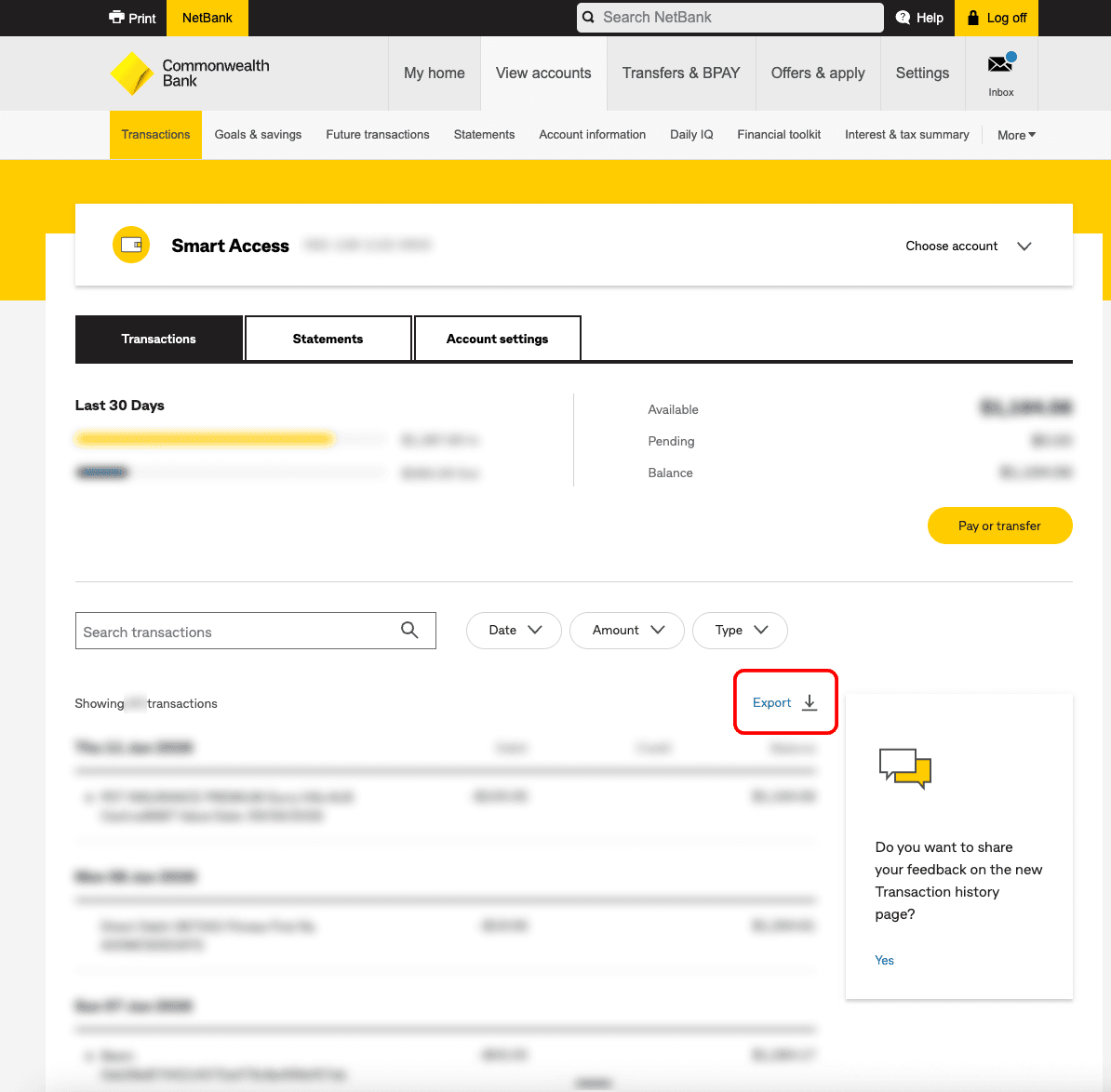
- Go to View accounts, then Transactions, and choose the account you want.
- Use the Date, Amount and Type filters to set the widest range you need.
- Click Export, the download icon sitting above the transaction list.
- Choose CSV and download the file.
How far back can I export CommBank transactions?
CommBank's NetBank export only covers what the transaction search can see, which is a limited recent window rather than your whole banking history. The exact span depends on the account and changes over time, so the practical approach is to set the earliest start date NetBank will accept and export everything from there. If the file comes back shorter than you expected, that's the search limit rather than a fault in the export.
For anything older, CommBank keeps statements for longer than it keeps searchable transactions, but those arrive as PDFs. See the last section for how to turn those into a CSV.
Can I export a CSV from the CommBank app?
The CommBank app is designed for checking and paying rather than exporting, so the full export controls live in NetBank on the web. If a laptop isn't handy, open NetBank in your phone's browser and switch to the desktop site; the Export control behaves the same way, just smaller.
Should I choose CSV, OFX or QIF?
Choose CSV. OFX and QIF are older interchange formats aimed at desktop accounting software like Quicken and MYOB, and while they carry the same transactions, CSV is the plain-text version every tool reads, Kleev included. If your download dialog offers Excel as well, that's fine too, but CSV is the least fussy.
Why does the CommBank CSV look like it's missing its headings?
CommBank's CSV genuinely has no header row: open it and the first line is already a transaction. The four columns are date, amount, description and running balance, in that order. Spreadsheets make this look alarming because they label the columns A, B, C, D, but the file is correct. Kleev recognises that four-column headerless shape on sight and maps the columns for you, so there's nothing to fix before you upload.
What about business accounts?
Export them the same way. Most CommBank business accounts now sit in NetBank and the standard CommBank app alongside personal accounts, so you open the account, filter the dates and click Export exactly as above. Pick CSV and drop the file into Kleev.
What if I can only get PDF statements?
If the period you want is only available as a PDF statement, you can convert it yourself: hand the PDFs to an AI assistant along with a prompt asking for date, description, amount and balance columns, then feed Kleev the CSV it gives back. We include the exact prompt in the parent CSV export guide, and the same trick works for any bank that only offers PDFs.
What happens once the CSV is in Kleev?
Drag the file into Kleev and it works out that the file came from CommBank by its column shape, normalises the rows, and starts sorting them into categories so your spending view fills in. Parsing happens in your browser, so the CSV file itself is never uploaded. Kleev's AI features do send transaction details (descriptions, dates, amounts and account names) to Anthropic's Claude API for categorisation, which is worth knowing up front. What never happens is a bank login: there's no credential to leak because Kleev never asks for one.
Common questions
Does Kleev need my NetBank password or client number?
No. Kleev never asks for your NetBank login, your client number or any banking credential, and it doesn't connect through a data aggregator. You download the CSV from CommBank yourself and drop the file into Kleev, where it's parsed on your device.
Why does my CommBank CSV have no column headings?
CommBank's transaction export has no header row by design: it opens as four bare columns of date, amount, description and running balance. That's the normal CommBank format, not a broken file, and Kleev recognises the shape without you labelling anything.
Can I export CommBank transactions from more than one account at once?
No. NetBank exports one account at a time, so you repeat the export for each account you want. Kleev accepts several files together and merges them into one combined history, so a transaction account, a credit card and a savings account end up in the same view.
Why is my CommBank CSV missing older transactions?
NetBank's transaction search only reaches back a limited window, so an export can only include what the search can see. Anything older generally comes from PDF statements instead, which CommBank keeps for longer.
Does the CommBank app export CSV files?
The CommBank app is built for checking balances rather than exporting data, so the reliable route is NetBank in a browser. If you only have a phone, open NetBank in the phone's browser and request the desktop site.