How to export your Amex transactions as a CSV
American Express exports your card transactions as a CSV from Statements & Activity, either by billing period or across a custom date range. We cover the download dialog, why Amex writes charges as positive numbers, and how the file reads in Kleev.

The short version
- Log into American Express and open Statements & Activity.
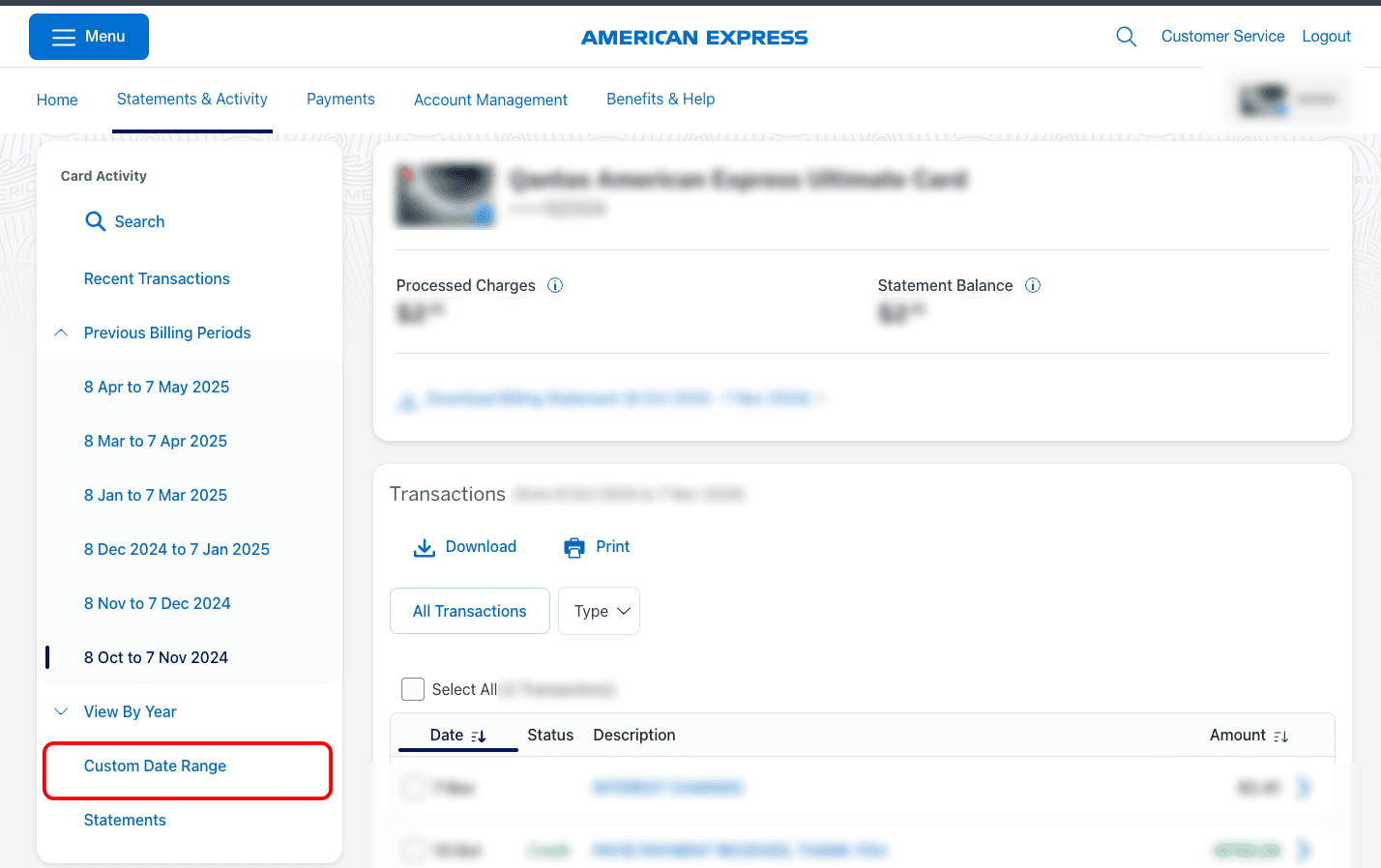
- Pick a billing period, or use Custom Date Range for a specific span like a financial year.
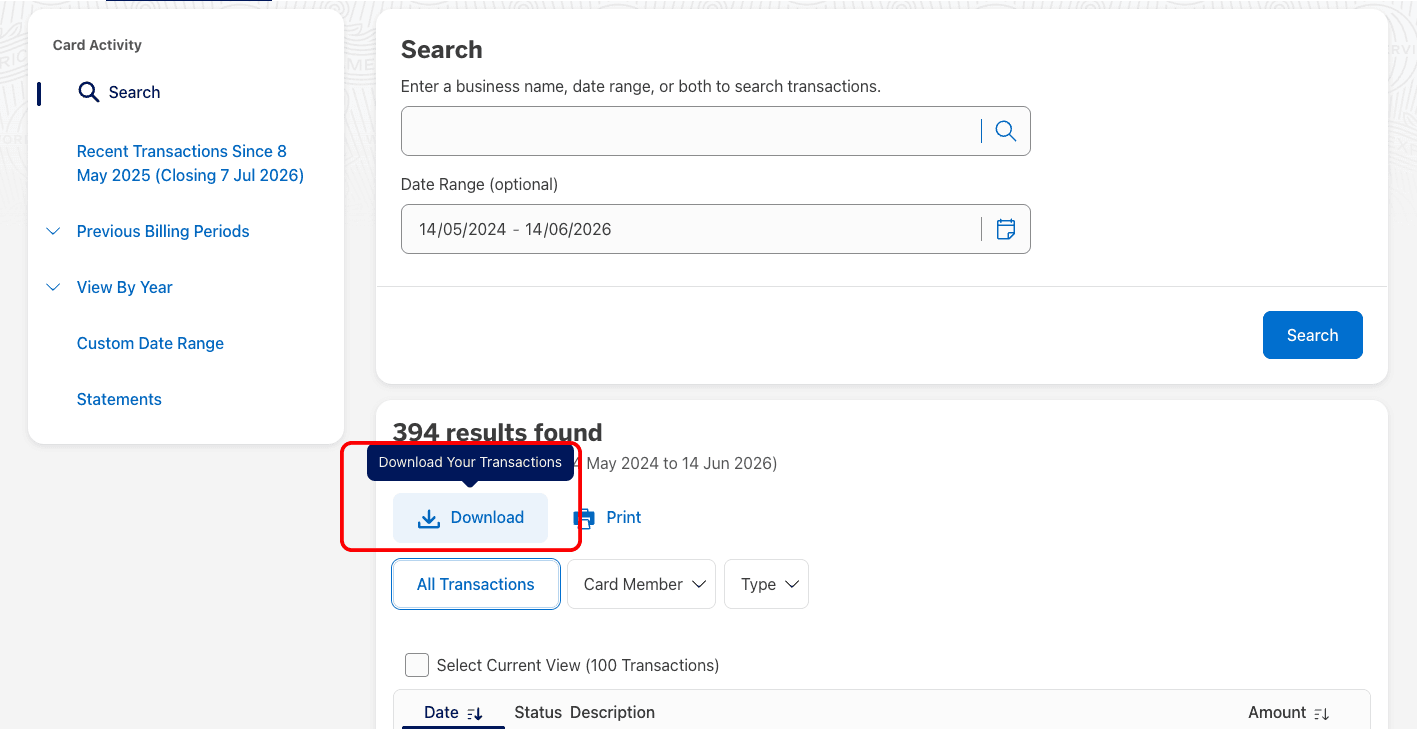
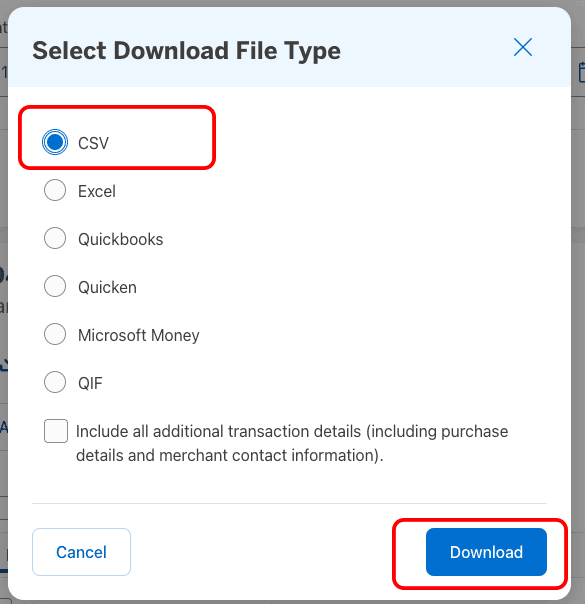
- Click Download Your Transactions, choose CSV, then drop the file into Kleev.
This is the Amex chapter of our full CSV export guide, with more detail on the custom date range and on the one thing that confuses people when they open the file: the signs.
How do I export my Amex transactions as a CSV?
American Express exports card transactions as a CSV from Statements & Activity, using Download Your Transactions once your transactions are listed. Start by choosing what to list: a billing period, or Custom Date Range for a specific span.
With the transactions on screen, click Download (labelled Download Your Transactions).
In Select Download File Type, choose CSV and download.
Can I export a whole financial year from Amex?
Yes, and this is the reason to use Custom Date Range rather than clicking through billing periods. Amex bills on a cycle that rarely lines up with 1 July to 30 June, so exporting by statement means stitching thirteen part-months together and hoping you didn't double up. Set the custom range to the dates you actually care about and take one file. How far back you can go depends on your card and how long you've held it, so if the date picker refuses a start date, that's the limit of what Amex keeps online.
Why are my Amex charges positive numbers?
Because a card export is written from the card's point of view. When you spend, your balance owing goes up, so Amex records the charge as a positive amount, and it's payments and refunds that come through negative. A bank account export usually does the opposite: money leaving is negative. Neither is wrong, they're just two conventions, and it's why a card CSV pasted into a spreadsheet next to a bank CSV produces nonsense totals. Kleev works out which convention a file uses when it reads it, so a card export and an account export end up pointing the same way in your transaction list without you touching a formula.
Can I export from the Amex app?
The Amex app is built for checking activity, paying the card and browsing offers, so the export lives on the website. Use a browser, and if you're on a phone, request the desktop site so the download control appears.
What if I only have PDF statements?
If a period is only available as a PDF statement, hand the PDFs to an AI assistant with a prompt asking for date, description, amount and balance columns, then upload the CSV it returns. The exact prompt is in the parent CSV export guide. Spot-check the result against the PDF before you trust it.
What happens once the CSV is in Kleev?
Drop the file in and Kleev recognises the Amex format from its columns, normalises the rows, sorts out the sign convention and starts categorising so your spending view fills in. If you also export the bank account your card is paid from, upload both together: Kleev spots the card payment as a transfer between your own accounts rather than counting it as spending twice. Parsing happens in your browser, so the file is never uploaded; Kleev's AI features do send transaction details to Anthropic's Claude API for categorisation. Your Amex login is never asked for.
Common questions
Where is the CSV export on the American Express website?
American Express puts it under Statements & Activity: choose a billing period or a custom date range, then use Download Your Transactions and pick CSV in the file-type dialog. There's no separate export section to hunt for.
Can I export an Amex date range that crosses billing periods?
Yes. American Express offers a Custom Date Range option alongside the billing-period list, so you can export a calendar year or a financial year in one file rather than assembling twelve statements.
Why are my Amex charges positive instead of negative?
Amex exports from a card's point of view, where a charge increases what you owe, so purchases appear as positive amounts and payments or refunds as negatives. That's the opposite of a typical bank account export. Kleev works out which convention a file uses when it reads it, so you don't need to flip anything.
Does Kleev need my American Express login?
No. Kleev never asks for your Amex username, password or card number, and it doesn't connect through a data aggregator. You download the CSV from Amex yourself and drop the file into Kleev, where it's parsed on your device.
Can I export from the Amex mobile app?
The Amex app is built for checking activity and paying your card, so the download controls live on the American Express website. Use a browser for the export, and request the desktop site if you're on a phone.