Reading the grid
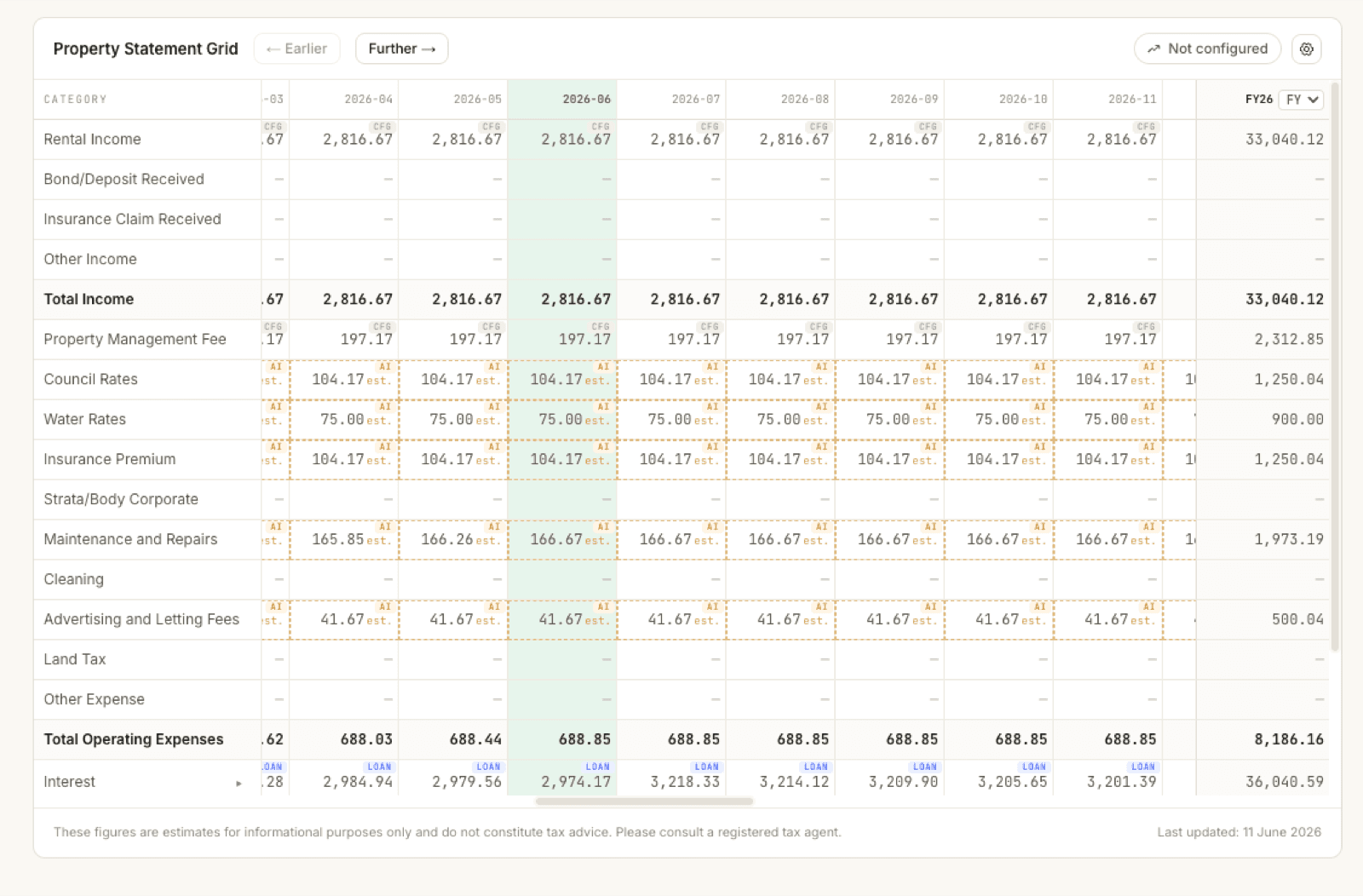
Rows run top to bottom the way an accountant would lay them out: income lines first, then a total income row, then operating expenses and their total, then the loan rows (Interest and Capital Repayment), and the two bottom lines: Net Cashflow (after principal) (what actually hit your pocket once loan repayments are counted) and Net Income for Tax (the taxable view, which also counts the non-cash items like depreciation listed between the two). Months run left to right; scroll sideways to move through time. The current month’s column is tinted green so you never lose your place in the timeline.
Total rows are calculated for you and can’t be edited directly; change the lines that feed them instead. Below the grid, a footer carries the standing reminder that the figures are estimates, not tax advice, and a Last updated date so you know how fresh the data is.
The little badges: where each number came from
Every filled cell carries a small badge in its corner telling you where that number came from. In plain words:
- Tx (green): from a real bank transaction you tagged to this property. The most trustworthy kind.
- M: entered by you, directly into the cell.
- Loan (blue): calculated from your loan details, e.g. the monthly mortgage interest.
- Cfg: from your property configuration, e.g. the rent you entered in basic setup, a management fee set as % of rent, or the annual figures from the Annual Expenses page (÷ 12).
- AI (amber, with a dashed outline and est. after the number): an assumption applied by Kleev, including amounts from the expense checklist and AI estimates.
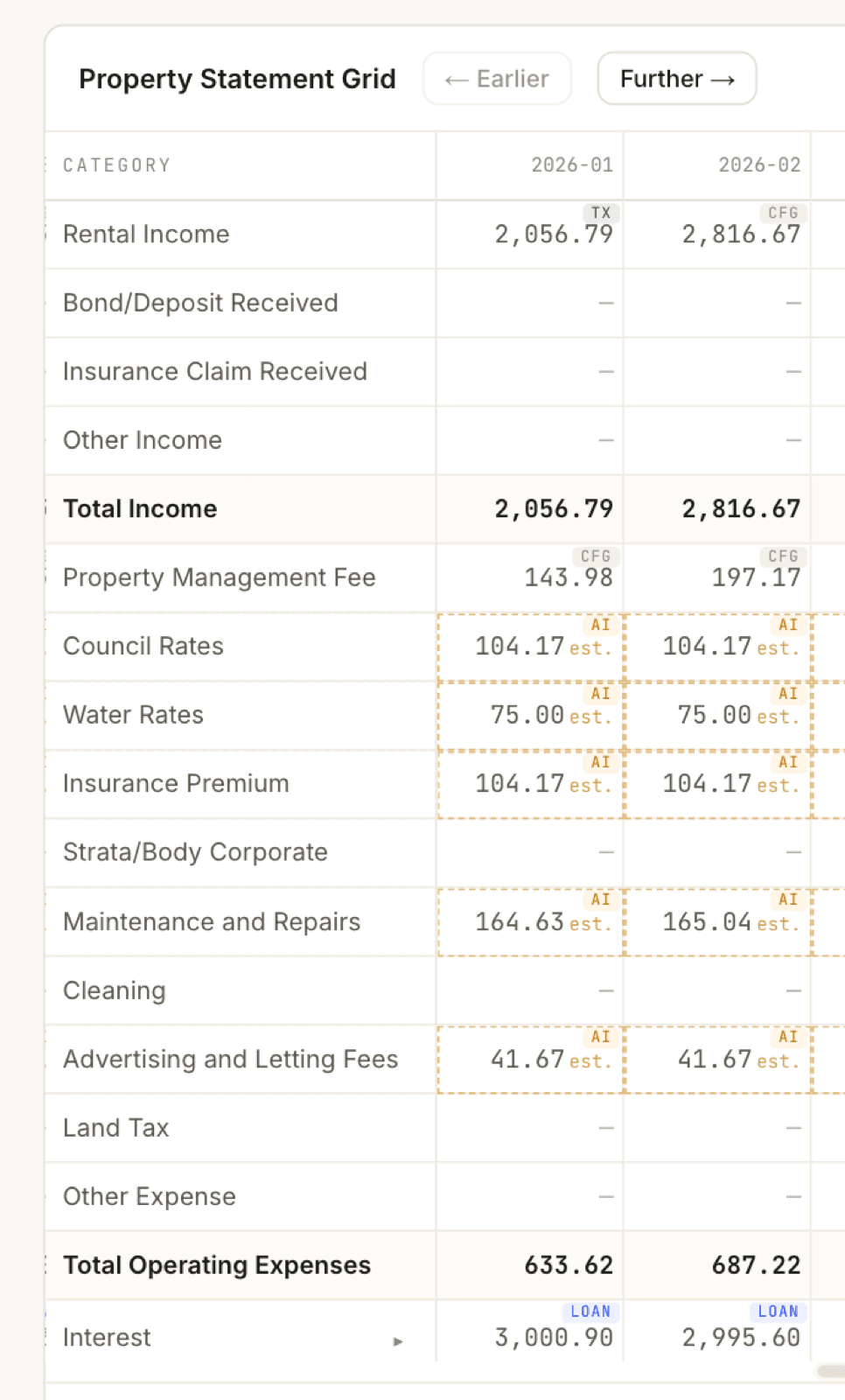
Real data always outranks assumptions: when a tagged transaction or a number you type covers a month, it replaces the estimate for that month. You can see the pecking order in the close-up below. January’s rent is 2,056.79 with a green Tx badge, the amount that actually landed in the bank, while February falls back to the configured 2,816.67 with a Cfg badge. The management fee follows suit (143.98 vs 197.17, both Cfg), because it’s a percentage of whichever rent figure won. The amber-dashed est. cells (council rates, water rates, insurance) are AI assumptions, and the Interest row’s 3,000.90 carries the blue Loan badge: calculated from your loan details, not typed by anyone.
Editing cells
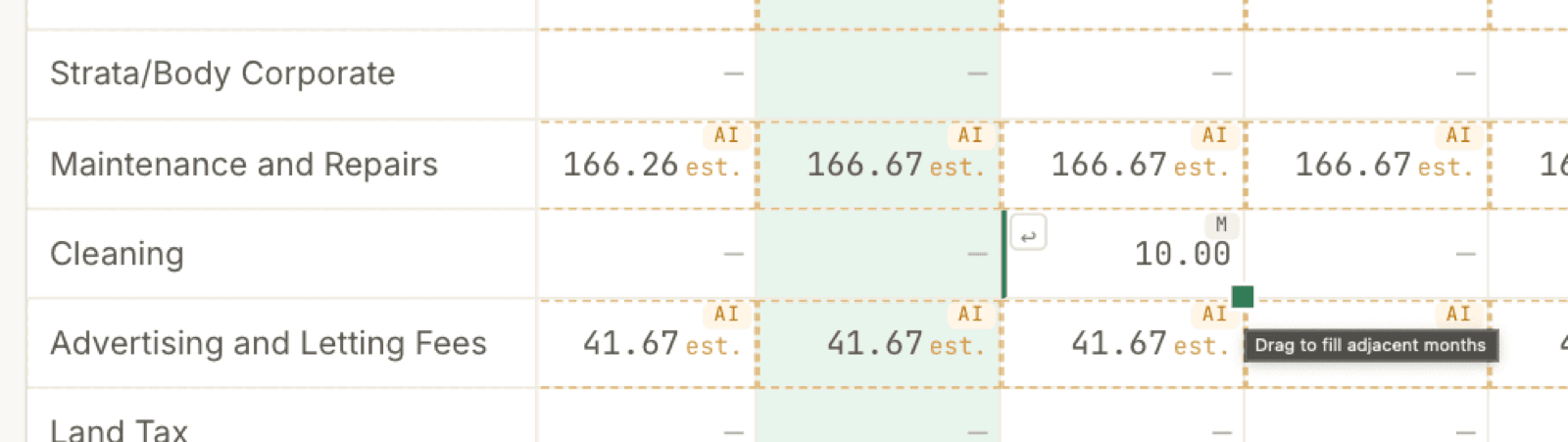
Click any non-total cell and type the correct amount. It becomes an M cell: your number, which nothing overwrites. Made a mistake? Hover the cell and a ↩ appears at its left edge; click it to revert to the value Kleev would have derived. You can see both in the screenshot below: a 10.00 Cleaning entry wearing its M badge, with the ↩ waiting at the cell’s left.
Drag-to-fill
To copy a value across several months, hover a cell and drag the small green square handle in its bottom-right corner sideways, the same gesture as a spreadsheet, and a tooltip (“Drag to fill adjacent months”) appears to remind you. Drag into past months and the copies count as entered by you; drag into future months and they’re treated as assumptions, so your inflation setting still applies on top.
Custom rows
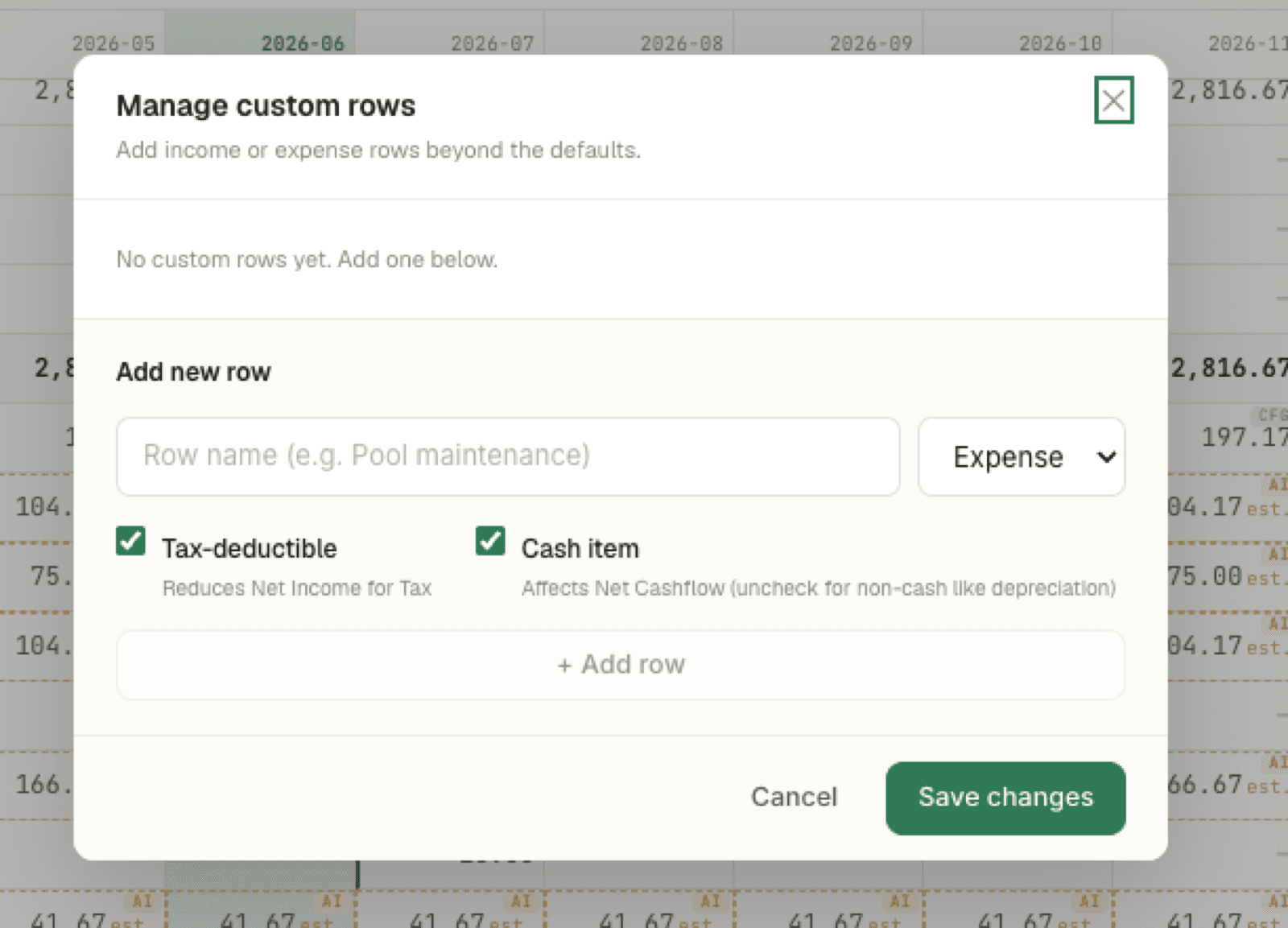
If the built-in categories don’t cover something (a pool maintenance contract, a granny-flat income line), open the cog menu at the top-right of the grid and choose + Custom rows. In the Manage custom rows dialog you name the row, pick Income or Expense, and set two checkboxes that decide how it’s counted:
- Tax-deductible: the row reduces Net Income for Tax. Untick it for things the tax office doesn’t recognise.
- Cash item: the row affects Net Cashflow. Untick it for non-cash items like depreciation, which lower your taxable income without a dollar ever leaving your account.
Click + Add row, then Save changes; the row then behaves like any other in the grid.
Inflation assumptions
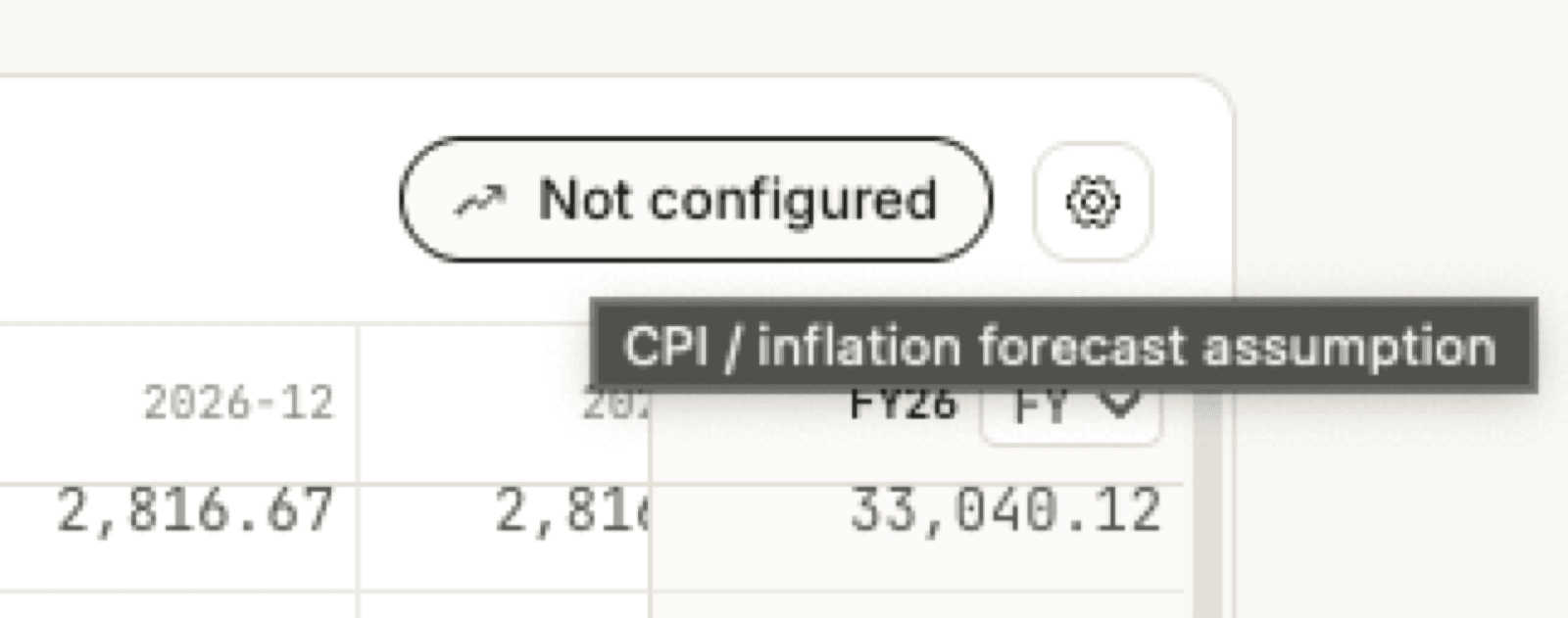
Future months are projections, and costs rise. The pill at the top-right of the grid shows your current setting: Not configured until you set one, then the rate (say 2.5% p.a.), or Custom once any row has its own rate. Hover it and the tooltip spells out what it is: the CPI / inflation forecast assumption.
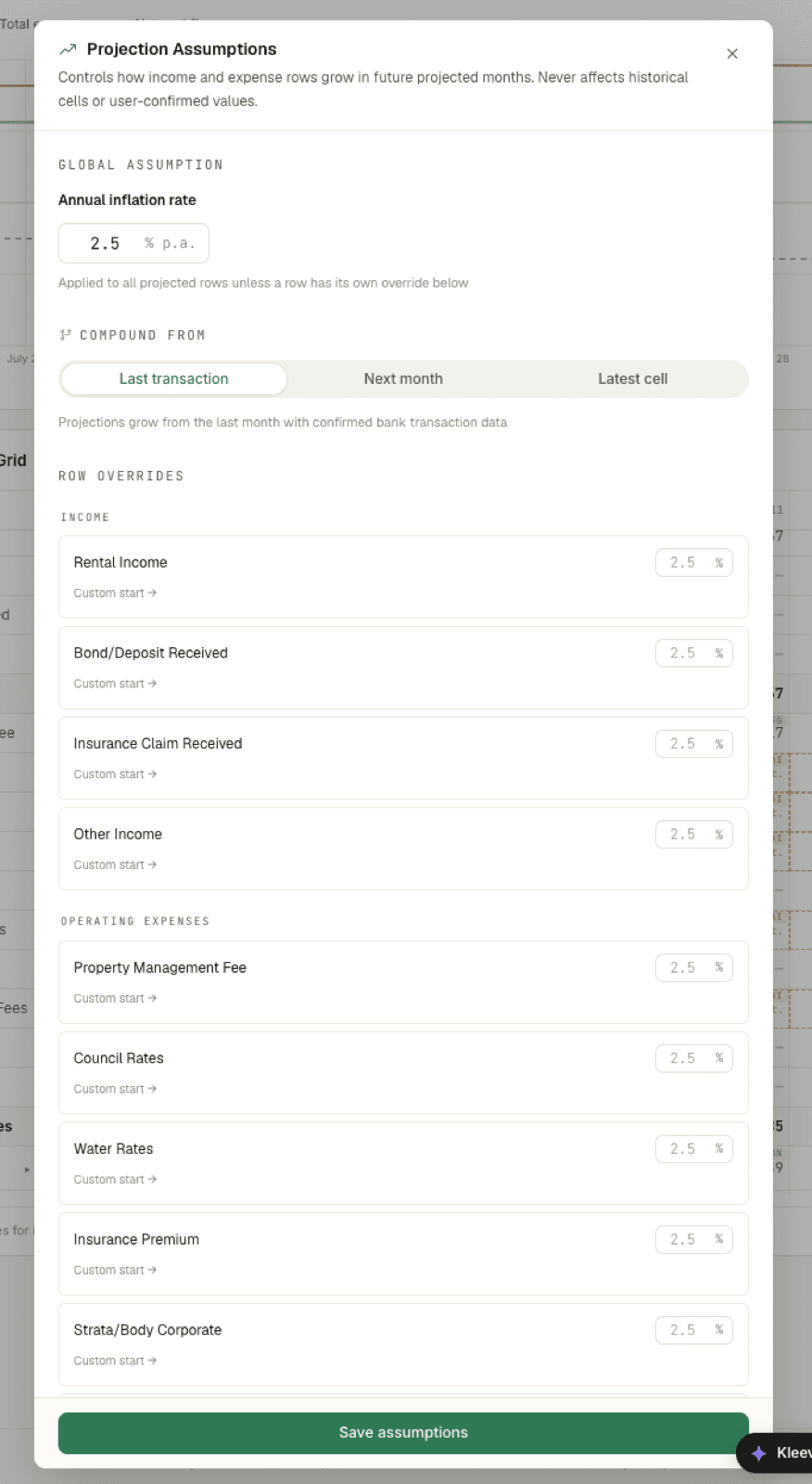
Click the pill, or choose Edit forecasts from the cog menu, and the Projection Assumptions dialog opens. Its first line is the promise that matters: it “controls how income and expense rows grow in future projected months. Never affects historical cells or user-confirmed values.” Three things to set:
- Global assumption: one annual inflation rate (e.g. 2.5% p.a.) applied to every projected row unless a row has its own override below.
- Compound from: where growth starts counting. Last transaction grows from the last month with confirmed bank data (the cautious default); Next month grows from next month onward, using the most recent available cell value; Latest cell grows from the most recently filled cell, actual or estimated.
- Row overrides: grouped under Income and Operating Expenses, each row gets its own % field (rates notoriously outrun CPI; rent reviews follow their own logic), plus a Custom start → link if a row should only begin growing from a particular month.
Hit Save assumptions and the amber estimate cells in future months grow accordingly; your Tx, M, and historical cells stay exactly as they were.
The FY summary column
The right-hand column stays pinned while you scroll and totals each row for the financial year currently in view; in the first screenshot it’s labelled FY26, with 33,040.12 of rental income for the year. Switch it between FY (July–June, the Australian financial year) and CY (calendar year) with the selector in its header, handy at tax time versus budgeting time.
Everything in the cog menu
- Edit expenses: reopen the expense checklist.
- Edit forecasts: the inflation assumptions above.
- + Custom rows: add your own income or expense rows.
- Export CSV: download the grid as a spreadsheet file.
- Reset grid: clears everything you and Kleev filled in, keeping only tagged transaction data and your configured rent. This can’t be undone.
Need to see more of the timeline? Above the grid, ← Earlier adds six more months of history and Further → adds another 12 future months.