Export a CSV from your bank
Kleev never connects to your bank. Instead, you download your own transaction history as a CSV file and drop it into Kleev. Every major Australian bank can do this from online banking: look for an Export or Download statement option on your account’s transaction page, and choose CSV as the format.
- Pick whatever date range you want to analyse: a month, a year, or more.
- Export each account separately (everyday account, savings, credit card). Kleev is at its best when it can see all of them together.
- How much you can bring in per upload depends on your plan: Free handles up to 10 files and 2,000 transactions, Pro up to 20 files and 5,000 transactions, and Max up to 30 files and 10,000 transactions. Every file can be up to 5 MB.
Upload your files
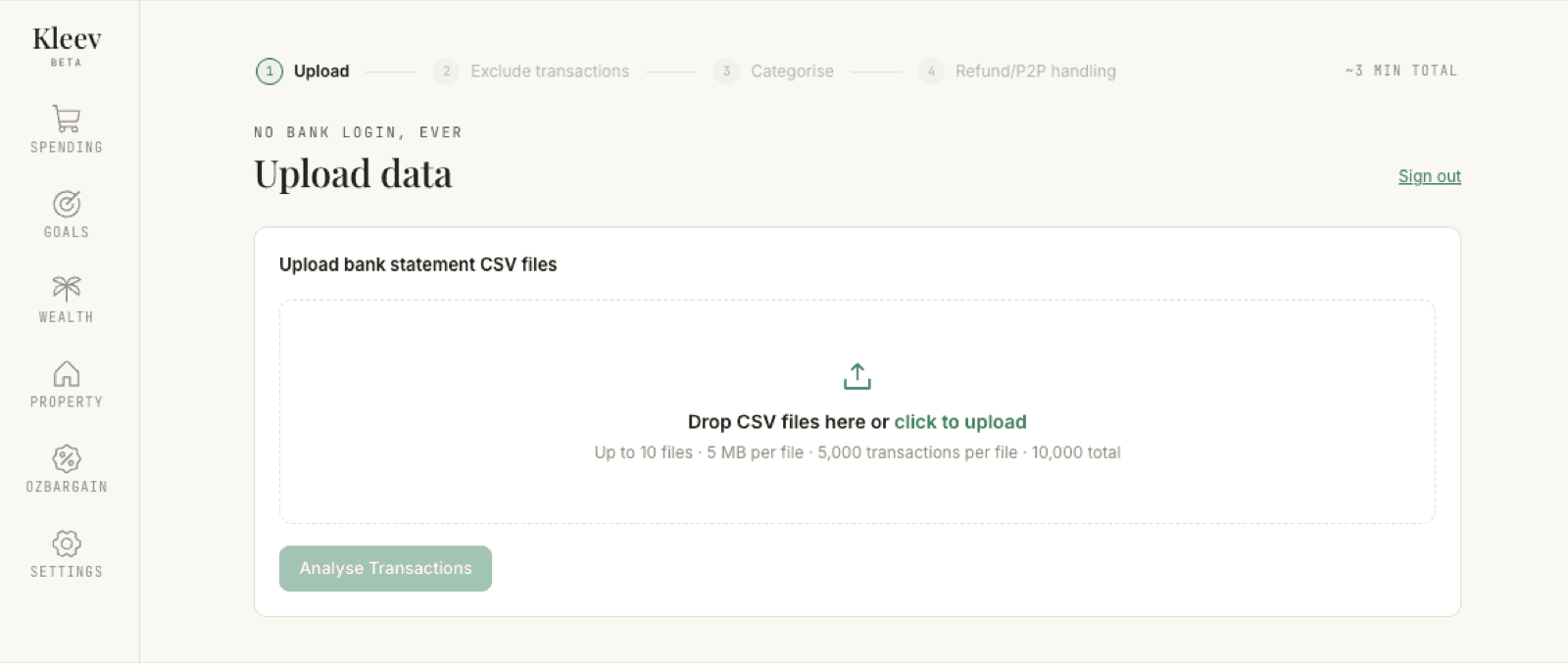
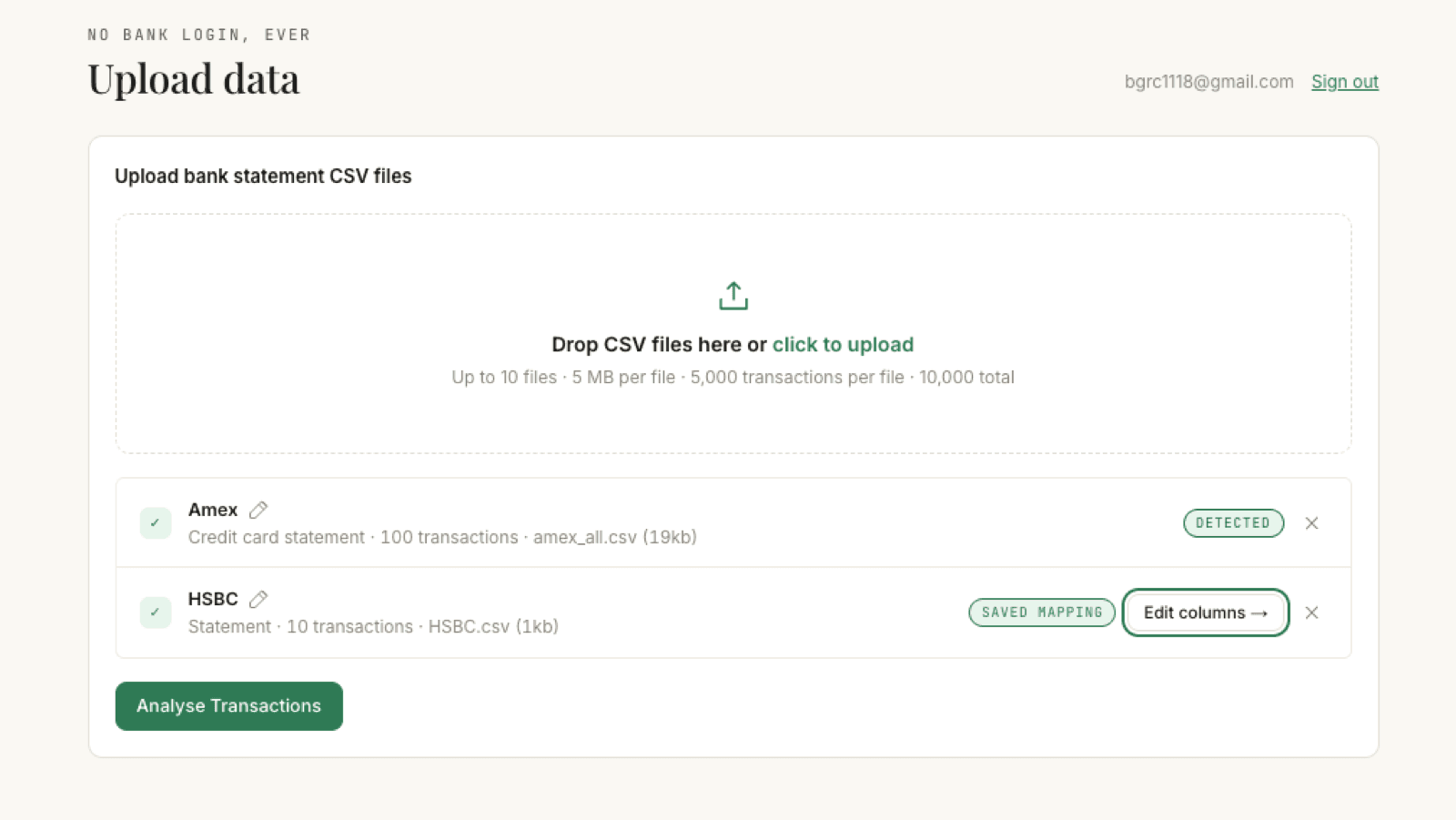
Sign in with your email and password, or via Continue with Google or Continue with Apple (there’s a Sign up link to create an account, and a Forgot password? link if you need a reset), then head to the upload page. Drag your CSV files onto the box that says Drop CSV files here or click to upload, or click it to browse. The progress bar across the top shows all four setup steps and a rough time estimate for the whole thing (about three minutes), and the Analyse Transactions button stays greyed out until you’ve added at least one file.
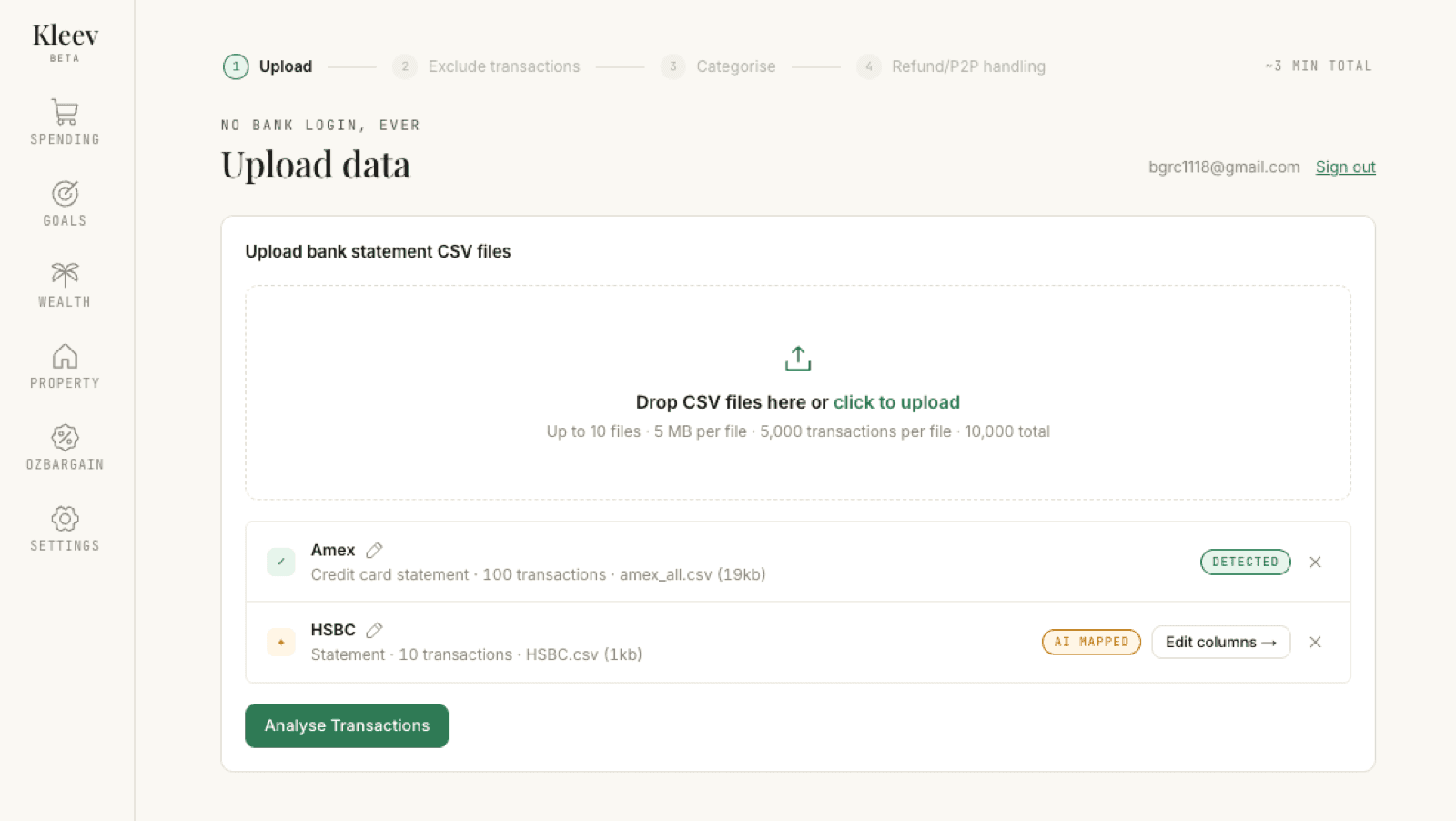
Each file appears as a row showing the bank Kleev detected, the kind of statement (bank account or credit card), and how many transactions it found. A small status chip tells you how the file was recognised:
- Detected: Kleev recognised the bank’s format straight away.
- AI mapped: the format wasn’t a standard one, so Kleev worked out which column is which. Worth a quick glance via Edit columns →.
- Saved mapping: you’ve uploaded this format before; Kleev reused your earlier setup.
- Needs mapping: Kleev couldn’t work it out. Click Map columns → and tell it which column holds the date, description, and amount.
Map columns (when Kleev needs help)
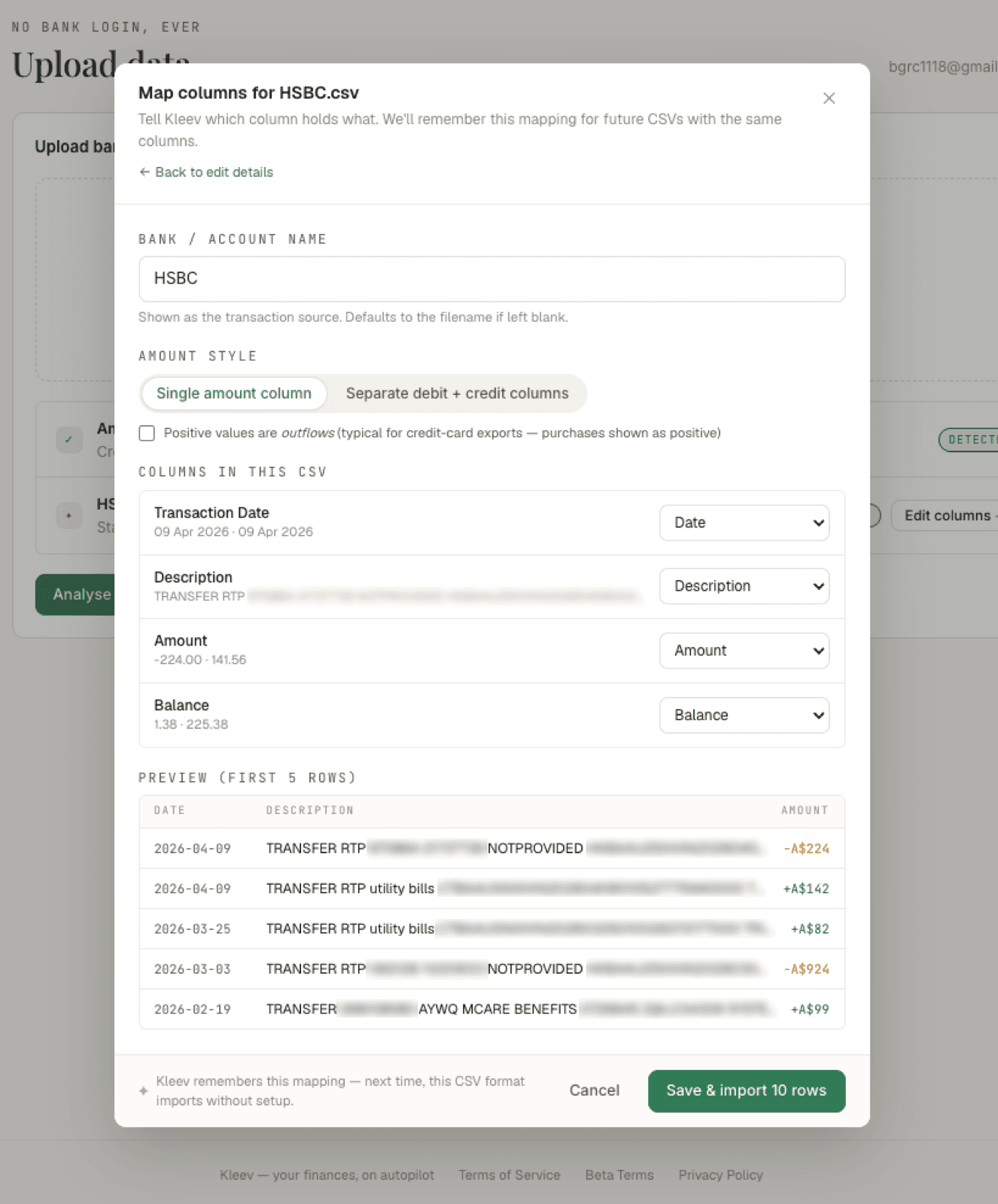
Edit columns → (or Map columns →) opens the column mapper. You won’t need it for recognised formats, but it gives you full control when Kleev guessed or couldn’t detect the layout.
- Bank / Account name: how this file is labelled as a transaction source. Defaults to the filename if left blank.
- Amount style: choose Single amount column or Separate debit + credit columns, whichever matches the CSV.
- Positive values are outflows: tick this for files where spending shows as positive numbers. Typical for credit-card exports, where purchases are positive.
- Columns in this CSV: assign each column a role: Date, Description, Amount, or Balance.
A preview of the first five rows updates as you go, so you can check the dates and amounts landed in the right places before clicking Save & import. Kleev remembers the mapping, so the next CSV with the same columns imports without any setup.
Name each account
Next to the detected bank name on each row there’s a small pen icon (visible in the screenshots above). Click it to change which bank the file belongs to, or pick Custom name… to type your own label.
If you have two accounts at the same bank (say two NAB accounts), give them distinct names like NAB 1 and NAB 2. That way you can always tell them apart later when Kleev shows which account a transaction came from.
Confirm which way the money flows (if asked)
Banks disagree on whether spending shows as a positive or a negative number. Kleev usually works this out on its own, but if a file is ambiguous you’ll be asked to confirm before the analysis runs: a short preview of your transactions appears and you choose whether the amounts are the right way around or need to be flipped.
Kleev remembers your answer for that exact file, so re-uploading it later never asks again.
Analyse
Once no file is still detecting or waiting on a mapping, click Analyse Transactions. Kleev merges all the files into one timeline and moves you into a short four-step setup: Upload → Exclude transactions → Categorise → Refund/P2P handling. The time estimate in the top corner counts down as you go. You can move forward with Next →, go back any time, or Skip → a step and return later.
Confirm your aliases
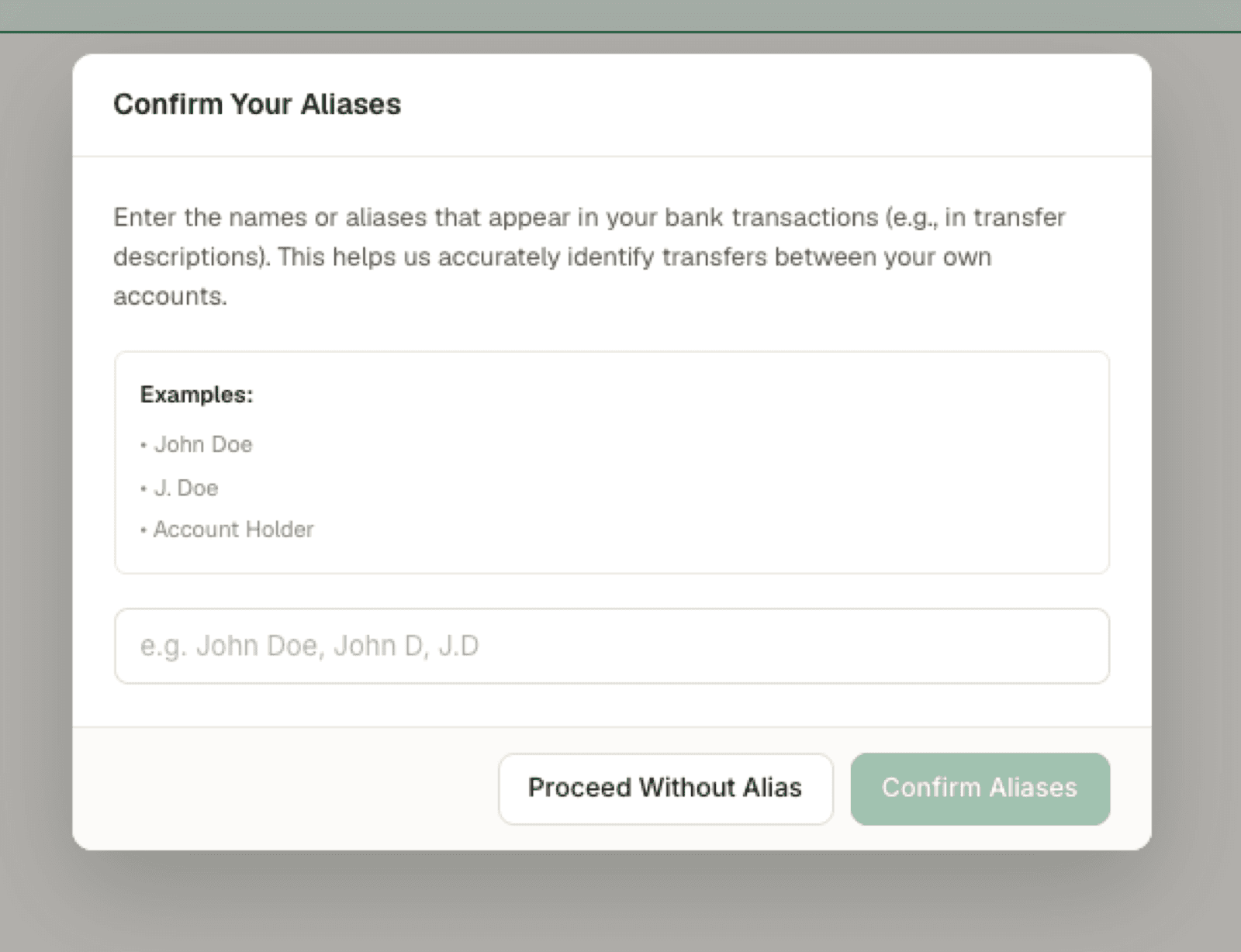
Before the first step runs, Kleev asks you to Confirm Your Aliases: the names that appear in your own transfer descriptions, in whatever forms your banks print them (e.g. John Doe, J. Doe, Account Holder). When a description contains one of your aliases, Kleev knows it’s money moving between your own accounts rather than a payment to someone else, and flags it in the next step.
Type the names separated by commas and click Confirm Aliases. Kleev remembers them for future imports.
Proceed Without Alias is fine too: Kleev still detects transfers by keywords. You’ll just see more peer-to-peer payments mixed in with your actual transfers, so expect a little more checking in the next step.
Step: Exclude transactions
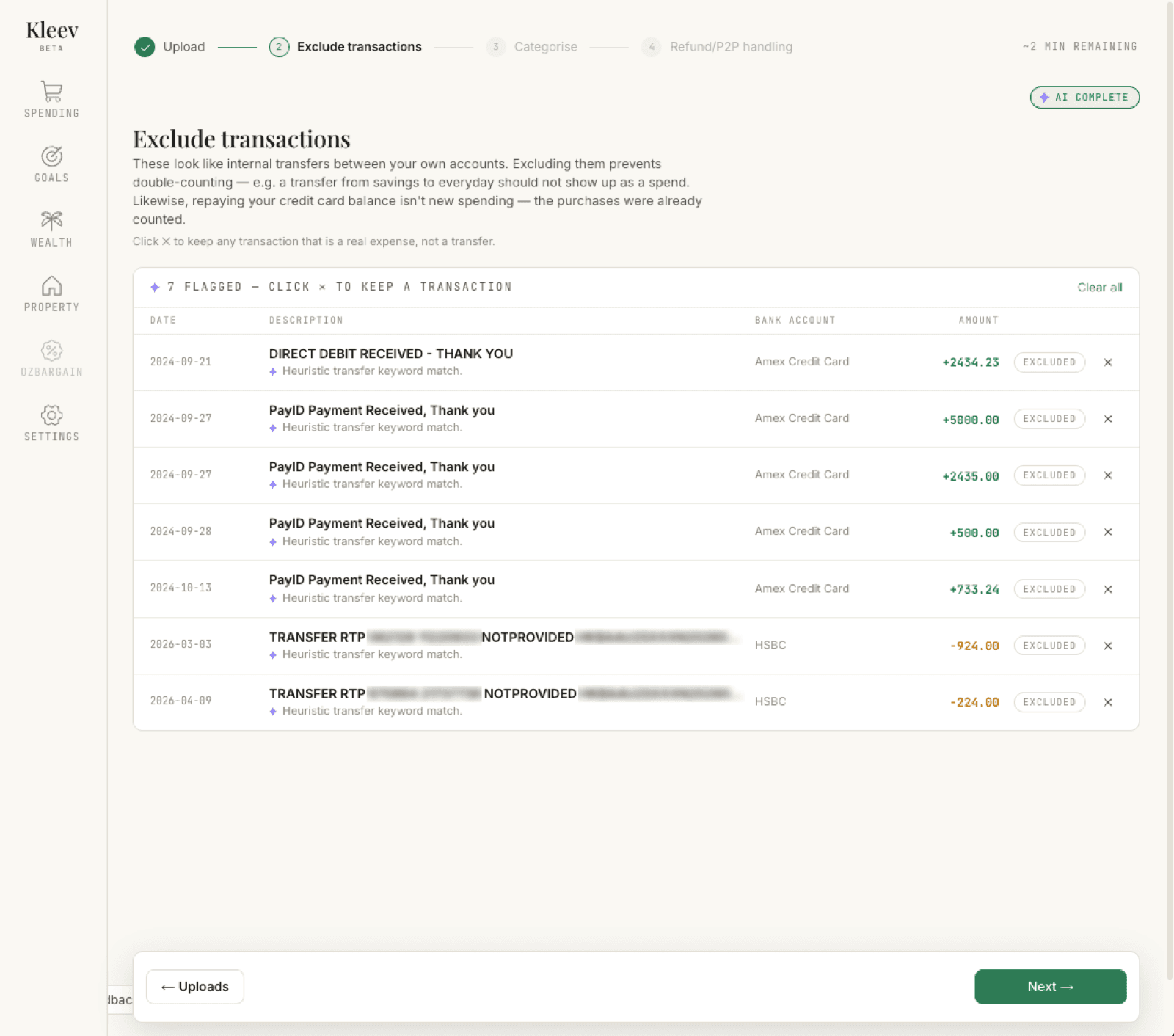
Kleev flags transactions that look like internal transfers (money moving between your own accounts) and credit card repayments. These are excluded by default because they aren’t real spending: a transfer from savings to everyday isn’t an expense, and paying off your credit card would double-count purchases that were already on the statement.
The list header counts what’s flagged (✦ 7 flagged — click ✕ to keep a transaction), and each row carries an Excluded chip with the reason Kleev flagged it in violet underneath, “Heuristic transfer keyword match” for example. If something in the list is actually a real expense, click the ✕ on that row to keep it; Clear all keeps everything in one click. While Kleev’s AI is still reviewing the list, a status pill in the top corner shows progress; it reads ✦ AI complete when it’s done. ← Uploads takes you back to add more files; Next → moves on.
Step: Categorise
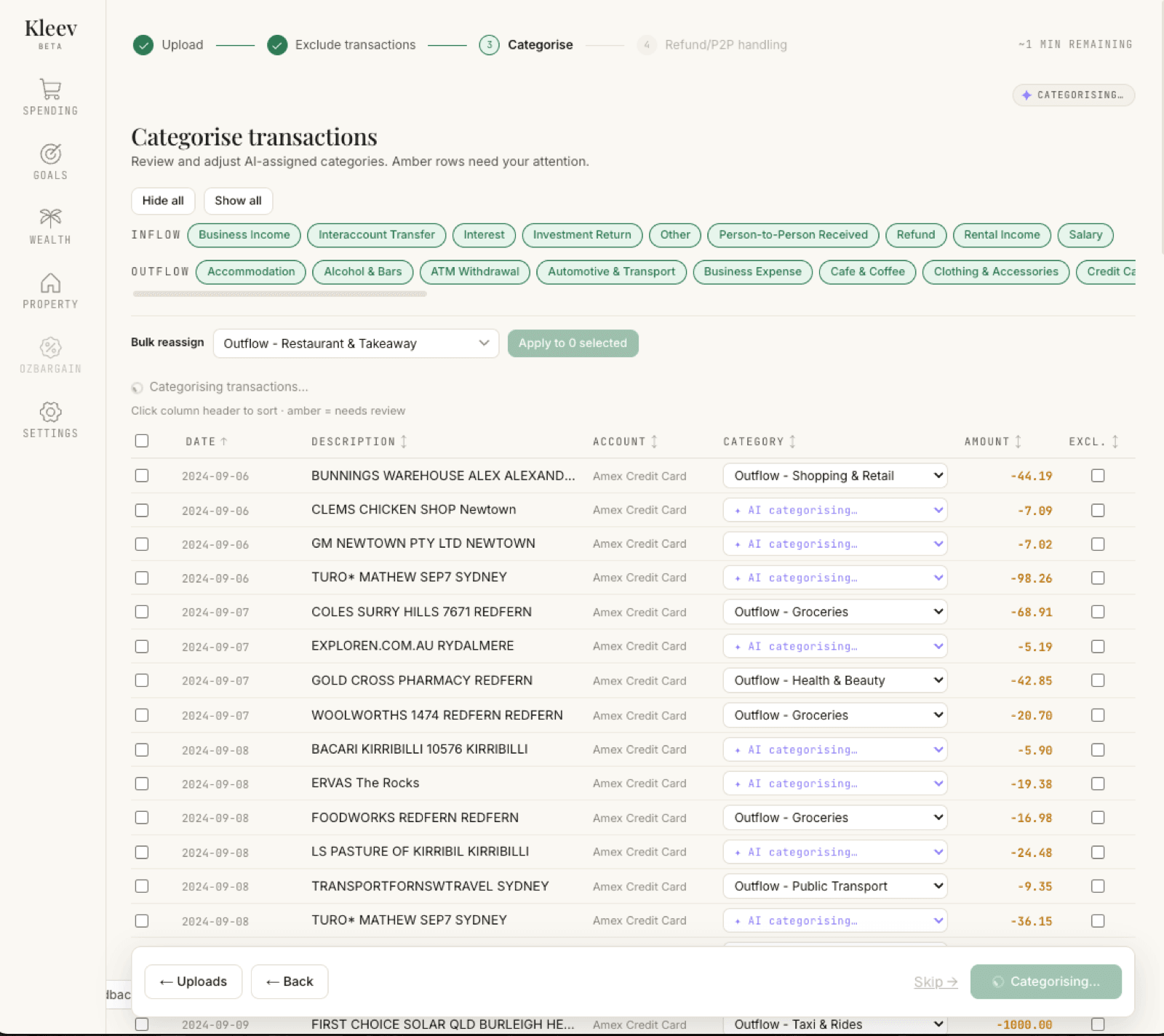
Kleev assigns every transaction a category (Groceries, Dining, Rent, and so on). While it’s working, a ✦ Categorising… pill sits in the top corner, unresolved rows show ✦ AI categorising… in their dropdowns, and the footer button reads Categorising… until it finishes. You can start fixing rows in the meantime, or Skip → and come back. Once it finishes, amber rows are the ones that need your attention: Kleev wasn’t confident, so pick the right category from the dropdown.
- Change any category with the dropdown on its row. Kleev remembers your choice and applies it automatically to the same merchant in future imports.
- To fix many rows at once, tick their checkboxes, choose a category under Bulk reassign, then click Apply to N selected.
- The category pills above the table are grouped into Inflow and Outflow. Click one to filter the list, or use Hide all / Show all to collapse or expand the lot.
- Click a column header to sort, and tick Excl. on any row you want left out of your totals.
Step: Refund/P2P handling
The last step deals with two things that distort spending totals: refunds, and person-to-person payments.
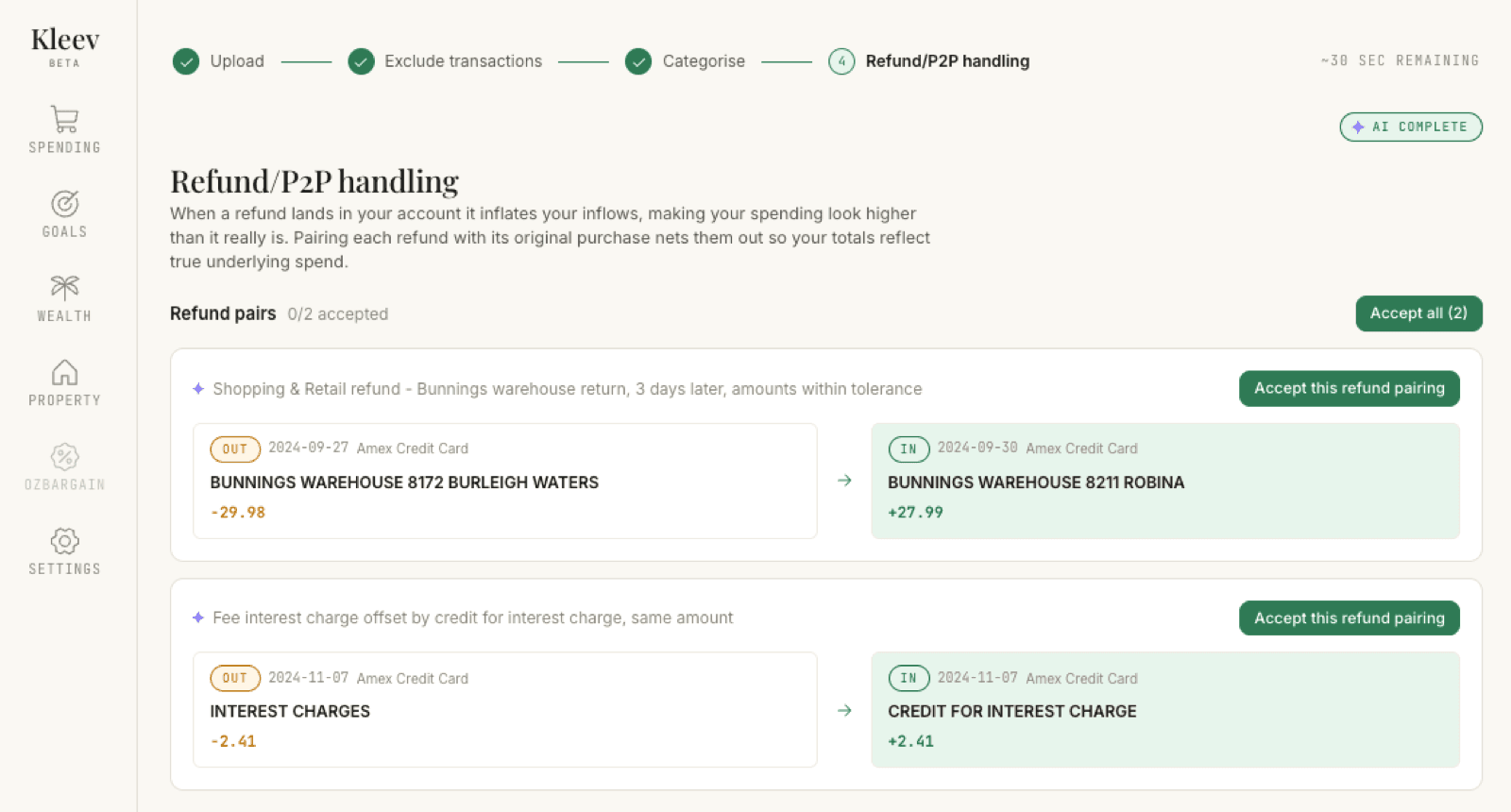
Refunds. When a shop refunds you, the money lands back in your account as an inflow, which makes it look like income, while the original purchase still counts as spending. Kleev suggests pairs: each card shows the original purchase (out) beside the refund (in), with the reason they matched in violet, e.g. “Bunnings warehouse return, 3 days later, amounts within tolerance”. Click Accept this refund pairing on a card, or Accept all (N) to take every suggestion, and a counter tracks how many pairs you’ve accepted. Accepted pairs cancel out, so your totals reflect what you actually spent, and Kleev remembers accepted and rejected pairs for future imports.
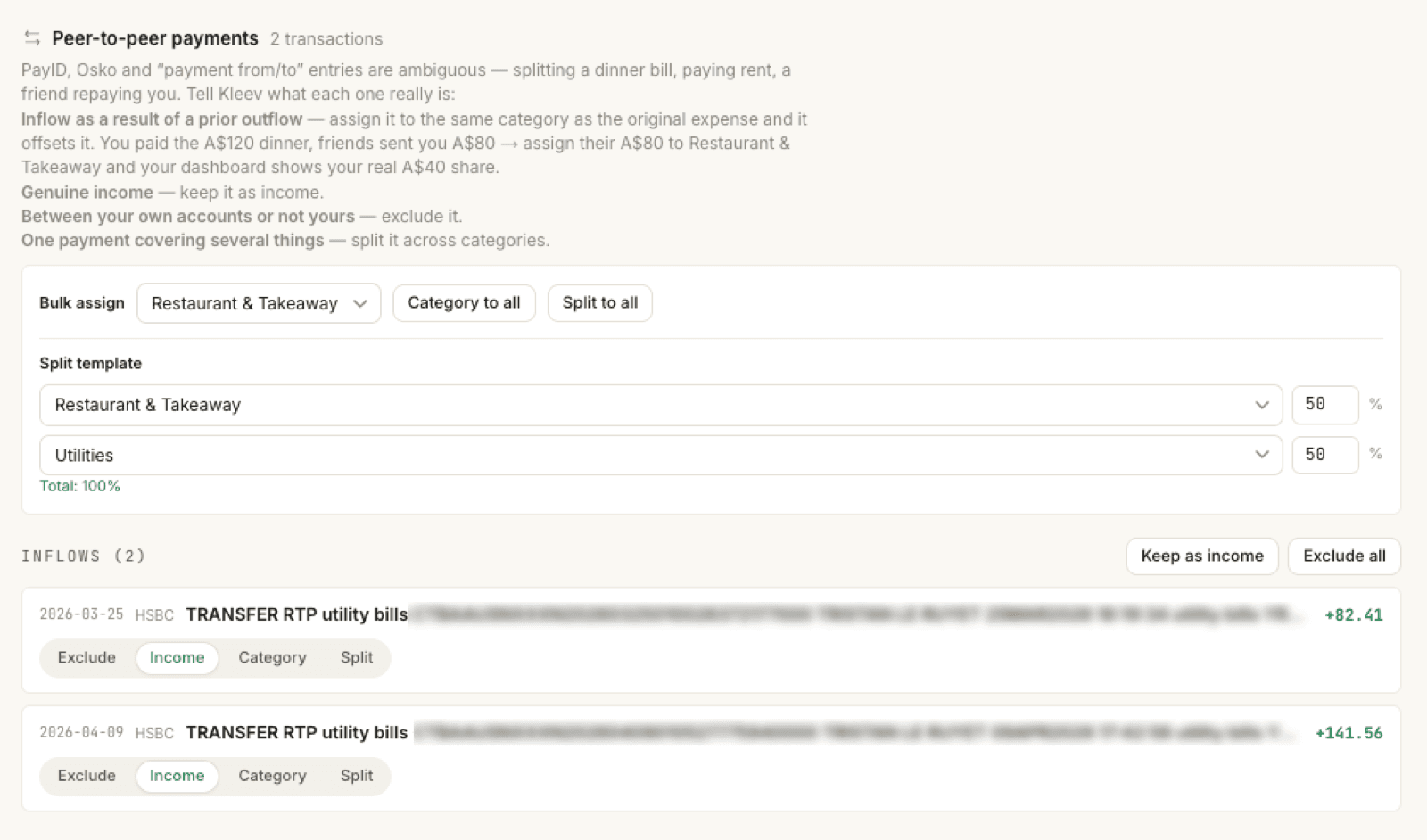
Person-to-person payments. For transfers to and from people (splitting dinner, paying a friend back), choose what each one really was using the buttons on its row:
- Exclude: not spending or income, leave it out.
- Income: money someone paid you.
- Category: treat it as a normal expense (or, for money received, as an offset against a category, e.g. a friend repaying their half of dinner reduces your dining spend).
- Split: divide one payment across several categories by percentage. The split template lists categories with a percentage beside each, and the percentages must total 100%.
Bulk assign handles the lot at once: pick a category and click Category to all, or Split to all to apply your split template to every row. Money people sent you sits under Inflows, with Keep as income and Exclude all shortcuts.
Done: your dashboard
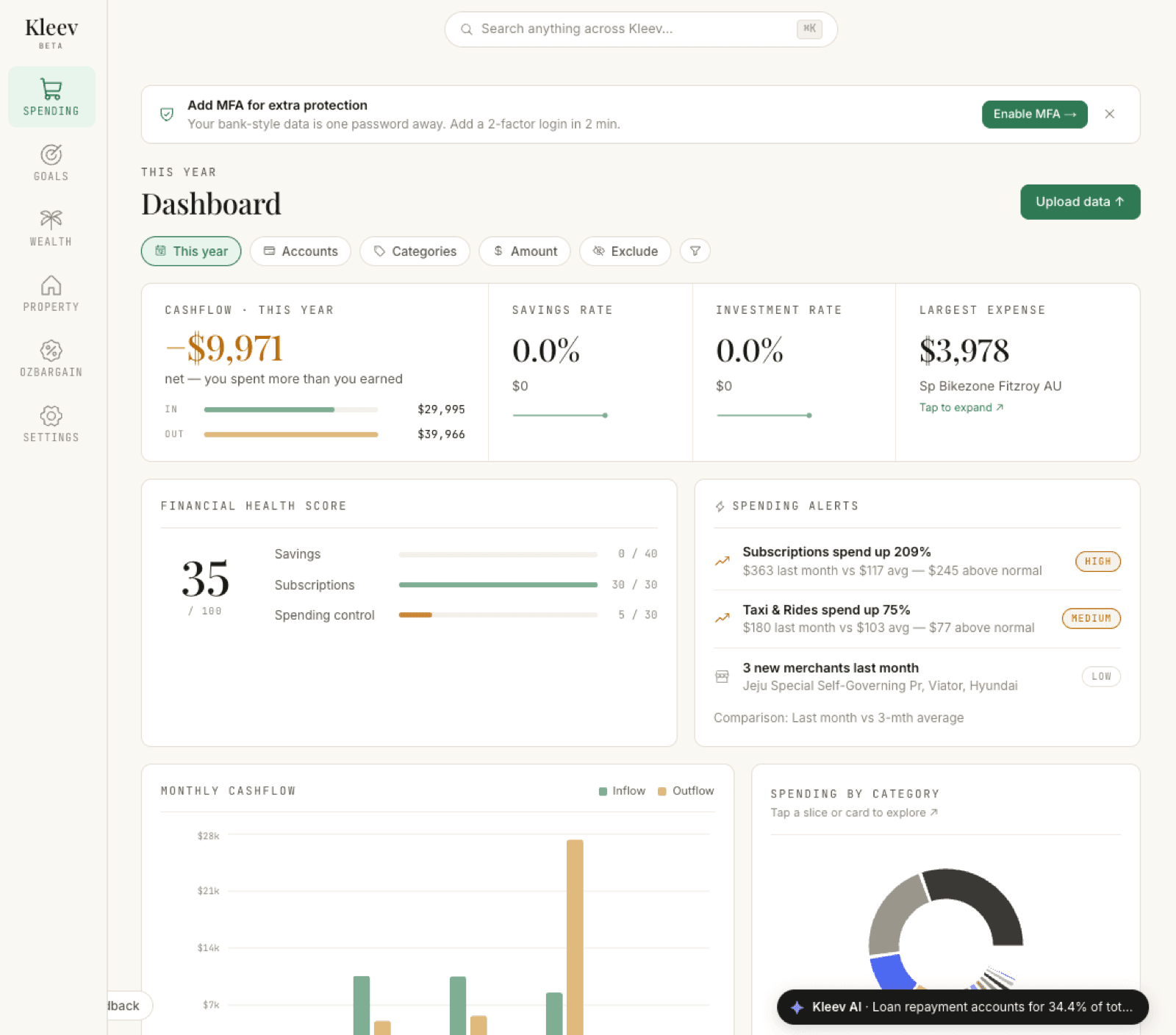
Click View Spending → on the final step. Kleev confirms how many transactions were imported and takes you to your dashboard, where your spending is broken down by category, account, and month. You can upload more statements any time. New imports go through the same four steps and merge into the same picture.